
How can we help you?
Find answers to frequently asked questions about GoValid QR Code Platform

Getting Started
Learn the basics of GoValidAuthentication For Everyone
Our vision: An authentication ecosystem with enterprise-grade security accessible to all.
GoValid is a community-first trust infrastructure that enables small producers, farmers, MSMEs (Micro, Small and Medium Enterprises), and creators to prove authenticity, ownership, and origin—without the cost and complexity of traditional systems.
Unlike standard QR generators, GoValid connects items to their origin, owner, and complete history. We provide enterprise-grade QR code authentication, traceability, and verification designed for:
- Individual creators and freelancers
- MSMEs and small businesses
- Farmers and cooperatives
- Government offices and NGOs
- Educational institutions
- Artists and craftspeople
Security Levels
| Smart QR | Compact, efficient for general use |
| Secure QR | Encrypted, tamper-resistant protection |
| Enterprise QR | Digital signatures with Ed25519 cryptography |
Key Features
- PDF Stamping: Embed QR codes with OTP and expiry features
- Real-time Analytics: Scan monitoring and Anti-fraud Detection
- Data Control: Password protection, expiry dates, and partial masking
- Institutional Numbering: High-volume document and certificate management
Integrations
- Microsoft Office Add-ins (Word, Excel, PowerPoint)
- Open Journal System (OJS) for academic publishing
- WordPress plugins
- Mobile apps (Android & iOS)
- Custom APIs for developers
Business Models
- Subscription-based: Monthly QR quotas with predictable annual costs
- Credit-based: Pay-as-you-go flexibility for irregular needs
Choose Plan-based (Subscription) if you:
- Generate QR codes regularly each month
- Want predictable annual costs
- Need access to premium features like PDF Stamping and Custom Forms
- Prefer monthly quotas that reset automatically
Choose Credit-based (Pay-as-you-go) if you:
- Have irregular QR code generation needs
- Want to pay only for what you use
- Prefer flexibility without commitments
- Need QR codes occasionally or in bursts
You select your preferred model during registration, and this choice determines your pricing and features throughout your account lifetime.
- Individual = Personal (for individuals and freelancers)
- Institution = Organisation (for businesses, schools, and organizations)
Individual/Personal account holders can be invited to join an Institution/Organisation as a member, allowing them to work under the institution's account while maintaining their personal account.
Note: Only Plan-based (subscription) users can join an institution. Credit-based (pay-as-you-go) users cannot be added as institution members.
Feature Comparison
| Feature | Individual/Personal | Institution/Organisation |
|---|---|---|
| Account Purpose |
• Personal use • Freelancers • Individual professionals |
• Micro, Small, and Medium Enterprises • Academic • Farmer groups/unions • Organizations |
| QR Code Generation |
All Forms Document, Certificate, Goods, Timeline, etc. |
All Forms Document, Certificate, Goods, Timeline, etc. |
|
Third-party Plugins Integrations with external platforms |
Available Microsoft Office: Word, Excel, PowerPoint CMS: WordPress, OJS, Joomla |
Available Microsoft Office: Word, Excel, PowerPoint CMS: WordPress, OJS, Joomla |
|
Logo on QR Codes Brand logo displayed in center of QR codes |
Not Available |
Available Institution logo centered on QR codes |
|
Pattern Numbering Auto-generate sequential numbers with custom patterns |
Not Available |
Available Create custom numbering patterns |
| Socio-Environmental Features | ||
|
C-Trace Carbon traceability and supply chain tracking |
Not Available |
Available Track carbon footprint |
| Bulk Certificate Issuance |
Available Excel Integration |
Available Excel Integration + Patterns |
|
Team Members Add team members to collaborate |
Not Available Individual accounts only |
Available 2 (Free), 5 (Starter), 15 (Business), 40 (Ultimate) |
| QR Code Prefixes |
I-XXXXIndividual prefix |
N-XXXXInstitution prefix |
| Pricing (Credit Users) | Standard Rate |
Lower Rate Discounted per-QR pricing |
Both account types have access to all basic QR code generation features and security levels.
Institution/Organisation accounts get additional features for branding (logo on QR codes), advanced numbering systems, and comprehensive socio-environmental tracking tools designed for enterprise use.
Build Your Reputation. Unlock Achievements.
Stand out in the community with badges that showcase your identity and accomplishments!
GoValid's badge system helps build trust and recognizes your contributions to the community. There are two types of badges you can display on your profile:
Identity Badges
Verified status badges that show WHO you are. These are assigned by staff after verification.
- Displayed on your avatar
- Builds instant trust
- Shows verified status
Achievement Badges
Earned through your activities and contributions. Level up as you use GoValid!
- Unlock automatically
- Feature on your profile
- Show your expertise
Identity Badges
These badges verify your account type and are displayed prominently on your avatar across the platform.
| Preview | Name | Description | How to Get |
|---|---|---|---|


|
Government | Official Government Institution account | Invited Only |
|
GoValid Staff | Official GoValid team member | Internal Only |

|
Provos | Community Trust & Safety team | Invited Only |

|
Verified Business | Verified Business/Institution account | Submit Business Docs |

|
Verified User | Identity verified individual | Complete ID Verification |
Achievement Badges
Unlock these badges as you use GoValid! They showcase your expertise and contribution to the community.
QR Activity Badges
QR Master
500+ QRsScanner Pro
500+ ScansVerification Expert
1,000+ ScansViral Creator
10K+ on 1 QRWorld Connector
10+ CountriesOffice Champion
1,000+ Office QRsCommunity & Trust Badges
Trust Builder
Multi-source TrustCommunity Leader
100K+ TrustEarly Adopter
365+ DaysAnimal Tracking Badges
Herd Master
50+ AnimalsAnimal Guardian
10+ AnimalsVet Partner
20+ VerificationsEnvironmental Champion Badges
Earth Defender
10+ TreesForest Contributor
Publish TreesWaste Warrior
Special AwardEnergy Saver
Special AwardWater Saver
Special AwardRenewable Hero
Special AwardQR Codes
Everything about QR code generation and managementGoValid offers 7 types of QR codes:
- Document QR: For general documents and files
- Certificate QR: For certificates and credentials
- Goods QR: For products and inventory tracking
- Timeline QR: For tracking events and history over time
- Custom Forms: Design your own forms (Business+ plans)
- PDF Stamping: Embed QR codes directly into PDFs (Starter+ plans)
- Excel Integration: Bulk generate QR codes from Excel data
Each type is optimized for specific use cases and includes relevant fields and features.
GoValid offers multiple security levels designed for different use cases. Compare our most popular options:
| Security Level | Encryption | QR Code Size | Best For | Plan Required |
|---|---|---|---|---|
| Smart QR | 96-bit |
Smallest
Ultra-compact |
• Tiny labels & tags • Product packaging • Space-limited items |
All Plans |
| Secure QR | 256-bit |
Balanced
Medium size |
• Business documents • Certificates • Standard security needs |
All Plans |
| Enterprise QR | Ed25519 + Non-Repudiation |
Largest
Maximum security |
• Legal contracts • Official documents • Regulatory compliance • Audit trail required |
All Plans |
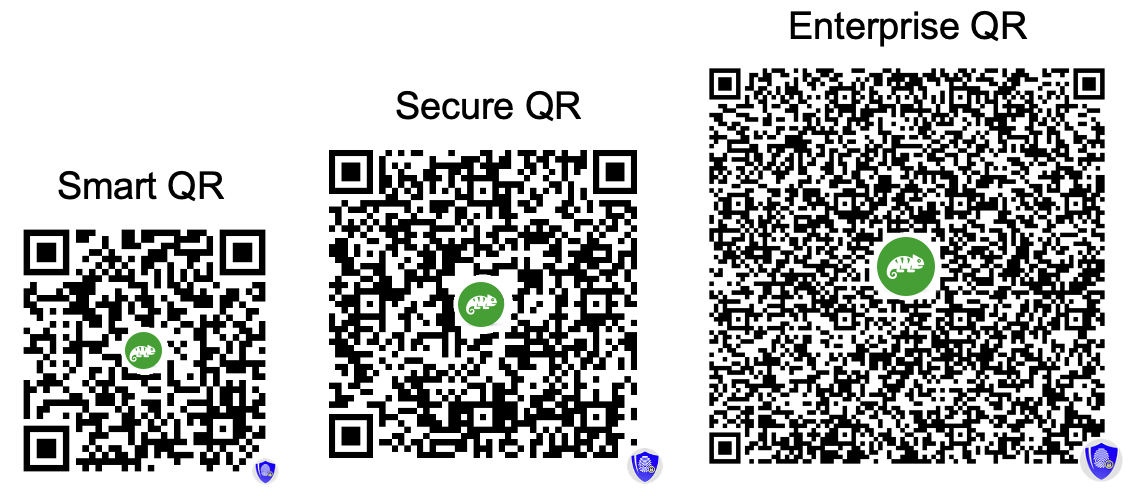
Visual comparison of QR code sizes across different security levels
Password Protection Options
Add an extra layer of security to any QR code with password protection. Choose the method that best fits your workflow:
QR-Master Password
One password for all your QR codes
- Set once in your account settings
- Automatically applies to all password-protected QR codes
- Easy to remember - just one password
- Perfect for personal use or small teams
- Can be changed anytime (updates all QR codes)
QR-Unique Password
Individual password for each QR code
- Set a different password per QR code
- Maximum security - one compromised password doesn't affect others
- Ideal for sharing with different people/departments
- Great for client-specific documents
- Each QR code is independently protected
- Cannot be viewed after creation
- Cannot be changed later
- Cannot be recovered if forgotten
- Make sure to save it securely!
Great news! GoValid now automatically embeds distinctive logos into your QR codes based on your subscription plan - at no extra cost! This exciting feature:
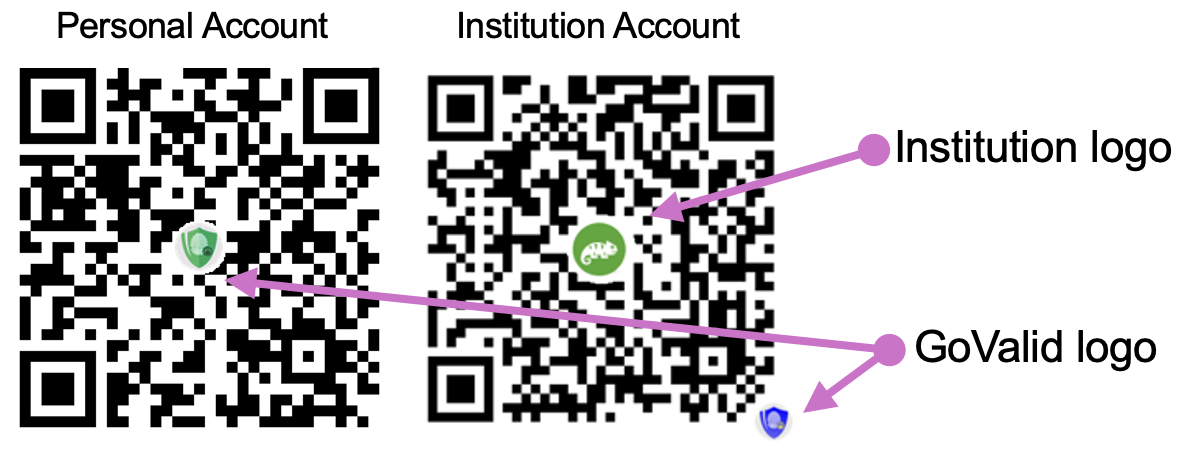
Example: QR codes with different colored logos based on subscription plans
Your QR codes now stand out with professional, plan-specific logos that show you're using a premium verification system.
Recipients immediately recognize GoValid-protected QR codes, increasing scan rates and confidence in your content.
Different colored logos indicate your subscription tier - a subtle way to showcase your professional commitment.
Logo Colors by Plan:
|
Orange Logo Free Plan & Pay-as-you-go Users |
Standard protection |
|
Green Logo Starter, Business & Ultimate Plans |
Premium verification |
|
Blue Logo Enterprise with Full Verification |
Maximum trust level |
This feature was added to enhance security perception and brand value. The transparent logos don't interfere with QR code scanning and work with all QR readers.
When someone scans your QR code:
- They're directed to a secure verification page
- The system validates the QR code's authenticity
- If password-protected, they must enter the correct password
- Upon verification, they can view the associated information
- Each scan is logged with device info, location, and timestamp
You can track all scans in your dashboard, including:
- Scanner's location and IP address
- Device type and browser
- Scan timestamp
- Security threat assessment
- Select QR codes you want to transfer
- Enter recipient's email address
- Recipient receives an email notification
- They must accept the transfer within 24 hours
- Complete transfer history is maintained
Note: Free plan users and credit-based users need to upgrade to access this feature.
The "Invalid and hiding date" feature allows you to set an automatic expiration date for your QR codes. When this date is reached, your QR code will either be invalidated or hidden based on your selection.
This feature is perfect for:
- Temporary events, promotions, or campaigns with specific end dates
- Time-sensitive documents that should expire (contracts, offers, tickets)
- Compliance with data retention and privacy policies
- Managing QR code lifecycle automatically without manual intervention
- Seasonal content that needs to be activated/deactivated on schedule
How it works:
- Enable the "Invalid and hiding date" option when creating or editing a QR code
- Select the date (and optionally time) when the action should occur
- Choose between "Invalidate QR" or "Hide QR" action
- The system will automatically process your QR code when the date is reached
When setting an "Invalid and hiding date" for your QR code, you can choose between two different actions that will take effect on the specified date:
Invalidate QR (Permanent Deactivation)
This option permanently invalidates your QR code, making it completely non-functional.
- What visitors see: "This QR code has been removed and is no longer valid"
- Status: Permanent - The QR code cannot be reactivated once invalidated
- Your data: All data remains stored in your account for your records and compliance
- QR image: The QR code image remains the same but scanning shows the error message
- Best for:
- Expired promotional campaigns or time-limited offers
- Documents that become obsolete after a certain date
- Event tickets or passes after the event has ended
- Certificates or credentials that expire
- Any content with a definitive end date
Hide QR (Temporary Hiding)
This option temporarily hides your QR code content from public view while keeping it intact in the system.
- What visitors see: "This QR code data is currently inactive and hidden from verification"
- Status: Temporary - Can potentially be reactivated by contacting support
- Your data: All data remains fully preserved and can be restored
- QR image: The QR code image remains the same but content is hidden when scanned
- Best for:
- Seasonal content that needs to be hidden temporarily
- Products temporarily out of stock
- Content under review or temporary suspension
- Compliance holds or legal requirements
- Testing purposes where you need to temporarily disable access
Important Notes
- The expiration process runs automatically every few hours, so there may be a slight delay before the QR code is invalidated or hidden after reaching the set date.
- You cannot change the action type (Invalidate vs Hide) after the QR code has been processed.
- For both options, you retain full access to view the QR code data and statistics in your dashboard.
The automatic expiration process runs periodically throughout the day:
You set an invalid and hiding date
Choose date/time and select either "Invalidate QR" or "Hide QR" action
System monitors expiration dates
The system checks for expired QR codes every few hours
Expiration date reached
QR code is automatically processed based on your selected action (Invalidate or Hide)
QR code scanned after expiration
Visitors see appropriate message based on action type
Your data remains safe
All QR code data is preserved in your account for your records
Your Data Remains Safe:
- QR code images are preserved
- All uploaded attachments remain stored
- Form data and information stay intact
- You can still access everything from your dashboard
- Download or export your data anytime
What Changes:
- QR code scanning is blocked
- Verification page shows error message
- Public access to data is prevented
Before expiration:
- Currently, you cannot modify the expiration date through the UI
- Contact support at [email protected] for assistance
- We can help extend or remove the expiration date
After expiration:
- For "Hidden" QR codes: Contact support for reactivation
- For "Invalidated" QR codes: Cannot be reactivated (create a new QR instead)
- You can still access and download all data from your dashboard
Yes! The expiration feature works seamlessly with bulk generation:
- All QR codes in a bulk batch receive the same expiration date
- Excel integration supports setting expiration dates
- Bulk notifications are sent for all expiring QR codes
- Batch processing ensures consistent handling
Example use cases:
- Event tickets that expire after the event date
- Promotional codes with campaign end dates
- Temporary access passes for visitors
- Seasonal product batches
Timeline QR codes are designed for tracking events, history, and changes over time. Perfect for maintenance logs, service records, and chain of custody documentation.
Core Fields
| Field | Description | Required |
|---|---|---|
| Title | Name of the item/asset being tracked (max 100 characters) | Yes |
| Identifier | Reference number with smart patterns: {counter}, {YYYY}, {random}, etc. | No |
| Description | Detailed description of the item (max 500 characters) | No |
Timeline Entries - Add Events Anytime, Anywhere
Add unlimited history entries to track events over the item's lifecycle:
- Entry Title: Brief description of the event
- Entry Description: Detailed notes about what happened
- Date & Time: When the event occurred (auto-filled with current time)
- Location: Where the event took place (auto-detect GPS or manual entry)
- Photos: Visual documentation (capture directly from camera or upload)
- Files: Attach supporting documents (PDF, images, etc.)
- Tagged Users: Link GoValid users to entries (privacy-respecting)
Scan & Add Workflow
- Scan QR code with any smartphone
- Click "Add New Entry" button
- Fill in event details
- Capture photo or attach files
- Submit - entry is saved instantly
Works Everywhere
- Field technicians on-site
- Warehouse workers during handling
- Delivery personnel at each stop
- Inspectors during audits
- Anyone authorized to add events
User Tagging Feature
Tag other GoValid users in timeline entries with privacy-respecting search:
Internal Users (Same Institution)
- Search by name, email, or user ID
- Full name and photo visible
- Instant search results
External Users
- Respects user's privacy settings
- 4-digit verification code required
- Name may be masked (Jo** Sm***)
- 5 failed attempts = 24h lockout
Smart Identifier Patterns
Use dynamic patterns in your identifier field:
| Pattern | Description | Example Output |
|---|---|---|
{counter} |
Auto-incrementing number | 1, 2, 3... |
{counter:5} |
Padded counter (5 digits) | 00001, 00002... |
{YYYY} |
Current year | 2025 |
{MM} |
Current month | 01-12 |
{DD} |
Current day | 01-31 |
{random} |
Random alphanumeric string | A7X9B2 |
{random:8} |
Random string (8 characters) | K9M2P4X8 |
Example: INV-{YYYY}-{counter:4} produces INV-2025-0001, INV-2025-0002, etc.
Mobile-Optimized Entry Form
When scanning a Timeline QR code, users can add new entries directly from their mobile device:
- Quick photo capture with device camera
- Auto-detect current GPS location
- Date/time pre-filled with current timestamp
- Attach files from device storage
- Tag other users with privacy controls
Create unlimited custom forms with drag-and-drop simplicity. Available for Business and Ultimate plan subscribers.
Available Field Types
Text Field
Single-line text input for names, titles, short answers. Supports character limits and placeholder text.
Text Area
Multi-line text for descriptions, comments, notes. Configurable rows and character limits.
Dropdown Select
Single or multiple choice from predefined options. Perfect for categories, status, types.
Date Picker
Calendar-based date selection. Supports date ranges, min/max dates, and various formats.
File Upload
Attach documents, images, PDFs. Configurable file types and size limits with encryption.
User Tag
Link to GoValid users with privacy-respecting search. Supports external user verification.
Form Templates
Start quickly with pre-built templates:
- Inspection Form: Checklist items, photos, inspector details, date/time
- Service Record: Service type, technician, parts used, next service date
- Handover Form: From/to parties, condition, signatures, witnesses
- Blank Template: Start from scratch with your own design
Field Configuration Options
| Option | Description |
|---|---|
| Required | Mark fields as mandatory for form submission |
| Label | Custom field label displayed to users |
| Placeholder | Helper text shown inside empty fields |
| Default Value | Pre-filled value for faster data entry |
| Validation | Character limits, patterns, email/phone formats |
| Help Text | Additional guidance displayed below field |
Drag-and-Drop Builder
The visual form builder makes design intuitive:
- Click "Add Field" to add new field types
- Drag fields to reorder them
- Click on any field to configure its settings
- Preview your form before saving
- Forms auto-save as you work
Digital Signatures & Non-Repudiation
Custom forms support Enterprise-level security with legally binding digital signatures:
Ed25519 Digital Signatures
- Cryptographically sign form data
- 256-bit elliptic curve security
- Tamper detection on any modification
- Smaller signatures, faster verification
Non-Repudiation
- Legally binding proof of origin
- Creator cannot deny authorship
- Timestamp verification
- Complete audit trail
Embed secure QR codes directly into your PDF documents with interactive preview and precise positioning. Available for Starter plans and above.
Interactive Preview
See exactly how your stamped PDF will look before processing:
- Real-time PDF preview in the browser
- Drag-and-drop QR code positioning
- Multi-page navigation with stamp preview on each page
- Zoom controls for precise placement
- Resize QR code with corner handles
Positioning Options
Fixed Position
Corner placements: top-left, top-right, bottom-left, bottom-right, or center
Custom Drag
Drag to exact pixel coordinates anywhere on the page
Size Control
Resize from 20px to 200px while maintaining scannability
Page Selection
Control which pages receive the QR stamp:
- All Pages: Stamp every page of the document
- First Page Only: Stamp just the first page
- Last Page Only: Stamp just the final page
- Custom Pages: Specify exact pages (e.g., 1, 3, 5-10)
- Odd/Even Pages: Stamp alternating pages for duplex printing
Digital Signature Integration
Combine PDF stamping with Enterprise-level security:
- Ed25519 Digital Signatures: Cryptographically sign the PDF content
- Tamper Detection: Any modification invalidates the signature
- Non-Repudiation: Legally binding proof of origin
- Timestamp Verification: Proves document existed at specific time
Three Delivery Options
| Option | Description | Best For |
|---|---|---|
| Automatic Download | Stamped PDF downloads immediately after processing | Quick single-document processing |
| Email Delivery | Stamped PDF sent to your email with download link | Large files, archive reference |
| Cloud Storage | Saved to your GoValid secure storage for later access | Batch processing, team access |
Batch Processing
Process multiple PDFs efficiently:
- Upload multiple PDFs at once
- Apply same stamp position to all documents
- Each PDF gets unique QR code with individual tracking
- Download as ZIP archive or individual files
Track products, inventory, and physical assets with ownership records and verification. Perfect for supply chain management and anti-counterfeiting.
Core Fields
| Field | Description | Required |
|---|---|---|
| Product Name | Name of the product or item | Yes |
| SKU/Serial Number | Unique identifier with smart patterns support | No |
| Description | Product details, specifications, features | No |
| Category | Product category for organization | No |
| Manufacture Date | Production date for traceability | No |
| Expiry Date | For perishable products | No |
Ownership Tracking
Track the complete chain of ownership:
- Current Owner: Who currently possesses the item
- Ownership History: Complete record of all previous owners
- Transfer Records: Date, time, and location of each transfer
- Verification: Both parties must confirm transfers
Encryption & Security
Goods QR codes support enterprise-grade security:
- AES-256-GCM: Military-grade data encryption
- ChaCha20-Poly1305: High-performance encryption
- Ed25519 Signatures: Tamper-proof verification
- Encrypted Attachments: Product photos, manuals encrypted
- Secure Keys: Per-item encryption keys
- Audit Trail: Complete access history
Anti-Counterfeiting Features
- Unique QR Codes: Each product gets a cryptographically unique code
- First Scan Detection: Alert if item was scanned before (potential counterfeit)
- Location Verification: Flag suspicious scan patterns
- Reporting System: Report suspected counterfeits
Issue and verify certificates, diplomas, licenses, and professional credentials with tamper-proof verification and instant authentication.
Core Fields
| Field | Description | Required |
|---|---|---|
| Certificate Title | Name of the certificate or credential | Yes |
| Recipient Name | Person or organization receiving the certificate | Yes |
| Certificate Number | Unique identifier with smart pattern support | No |
| Issue Date | When the certificate was issued | Yes |
| Expiry Date | When the certificate expires (if applicable) | No |
| Issuing Authority | Organization issuing the certificate | No |
Security Levels for Certificates
Choose the appropriate security level based on certificate importance:
| Level | Security | Best For |
|---|---|---|
| Smart QR | 96-bit encryption, compact size | Training certificates, internal credentials |
| Secure QR | 256-bit AES encryption | Professional certifications, licenses |
| Enterprise QR | Ed25519 signatures + non-repudiation | Academic degrees, official government documents |
Verification Process
When someone scans a Certificate QR code:
- QR code is scanned with any smartphone camera
- User is directed to secure verification page
- System validates cryptographic signature
- Certificate details are displayed with authenticity status
- Expiry status is checked and displayed
- Verification is logged for audit trail
Institution Integration
Connect certificates to your organization:
- Institution Badge: Display your organization's verified badge
- Government Verified: Special badge for government-verified institutions
- Logo Display: Your institution logo on verification page
- Contact Info: Link to institution for verification inquiries
Bulk Certificate Generation
Issue many certificates efficiently:
- Upload Excel/CSV with recipient data
- Auto-generate unique certificate numbers
- Batch QR code creation with individual tracking
- Email distribution to recipients
- Download all certificates as ZIP
All SmartSecure QR types share these powerful features for comprehensive document and asset management.
Anti-Counterfeiting Protection System
GoValid's advanced anti-counterfeiting system uses AI-powered detection algorithms to identify and flag suspicious scan patterns, protecting your brand and products from fraud.
9 Intelligent Detection Algorithms
- Scan Limit: Single-use, limited scans, or unlimited modes
- Rapid Repeat: Same QR from different devices/locations within minutes
- Device Count: Too many unique devices scanning same QR
- City Spread: Product scanned in too many cities (total or within time window)
- Distance Check: Scan too far from first/original scan location
- Impossible Travel: Physically impossible speed between scans (e.g., 500km in 1 hour)
- Age Check: Scan too long after first scan (configurable days)
- Before Issue Date: Product scanned before official issue date
- After Expiry: Product scanned after expiration date
- Auto-detects 46+ date field name variations
- Supports 10+ date formats automatically
- Works with: issue dates, expiry, manufacture, planting dates, etc.
Customizable Brand Protection Profiles
Create tailored protection profiles for different product lines or use cases:
| Assignment Type | Description | Example |
|---|---|---|
| Default Profile | Applied to all QR codes without specific assignment | General brand protection |
| By Form Type | Automatic assignment based on QR type (12 categories) | Certificates: strict single-scan; Goods: multi-scan allowed |
| By Tag | Assign profiles using custom tags on QR codes | "luxury-watches" tag → ultra-strict detection |
Violation Response Actions
Warning Mode
Show alert message but still display content. Good for:
- Soft enforcement during rollout
- Products with expected high scan rates
- Collecting data before stricter enforcement
Block Mode
Hide content completely on violation. Good for:
- High-value luxury products
- Single-use authentication
- Strict counterfeit prevention
11 Violation Types Tracked
| Violation | What It Means |
|---|---|
scan_limit_exceeded |
QR scanned more times than allowed |
too_many_cities |
Product verified in too many different cities (total) |
too_many_cities_recent |
Too many cities within configured time window |
too_far_from_first |
Current scan location too far from first scan |
impossible_travel |
Physically impossible travel speed detected between scans |
scan_too_old |
Scan occurred too long after first scan |
rapid_repeat_different_device |
Same QR from different device within minutes |
rapid_repeat_different_location |
Same QR from different location within minutes |
too_many_devices |
Scanned from more unique devices than allowed |
scan_before_issue_date |
Product scanned before official issue/manufacture date |
scan_after_expire_date |
Product scanned after expiration date |
Multi-Channel Violation Alerts
Email Alerts
Detailed HTML with scan context, GPS link, device info. Rate-limited (24h cooldown)
Dashboard Alerts
In-app notifications with direct links to violation details and analytics
Push Notifications
Instant mobile push for immediate awareness of violations
Public Counterfeit Reporting System
Allow consumers to report suspected counterfeits directly:
Report Submission
- Public form - no login required
- Purchase source: marketplace, physical store, vendor, social media
- Photo evidence upload
- Seller name and details
- Optional reporter email for updates
Status Workflow
- Pending: New report awaiting review
- Reviewed: Under investigation
- Confirmed: Verified as counterfeit
- Dismissed: Not counterfeit
- Reporter receives email on status change
First Scan Anchor Technology
The first scan of any QR code establishes the anchor point for all subsequent detection:
- Timestamp: Exact date and time of first verification
- GPS Coordinates: Latitude and longitude of first scan location
- City & Country: Geographic region of origin
- Device Fingerprint: Unique identifier of first scanning device
Comprehensive Statistics & Analytics
- Total violations with warning/block breakdown
- Affected QR codes count
- Violation type distribution
- Period-over-period trend analysis
- Geographic hotspots (where violations occur most)
- Report counts by status
Scan Analytics
Track every scan with detailed analytics:
- Scan Count: Total number of scans
- Location Data: GPS coordinates, city, country
- Device Info: Mobile/desktop, browser, OS
- Timestamps: Exact date and time of each scan
- IP Address: For security and fraud detection
- Threat Assessment: VPN, proxy, suspicious activity flags
- Trends: Daily, weekly, monthly scan patterns
- Map View: Visual representation of scan locations
Notifications
- Scan Alerts: Get notified when your QR code is scanned
- Security Alerts: Warnings for suspicious scan activity
- Expiry Reminders: Notification before QR codes expire
- Transfer Notifications: Alerts for ownership transfer requests
QR Code Customization
Customize your QR code appearance:
Colors
Foreground and background colors
Logo
Embed your logo in the center
Shapes
Module shapes and eye patterns
Export Options
- PNG: High-resolution raster image
- SVG: Scalable vector format for any size
- PDF: Print-ready format with metadata
- Bulk Export: Download multiple QR codes as ZIP
API Integration
Integrate with your existing systems:
- RESTful API for all QR operations
- JWT authentication
- Webhook notifications for scan events
- Bulk operations support
- OpenAPI documentation available
Instant QR
Quick QR code generation for everyday useGoValid offers two powerful QR code systems designed for different needs:
Instant QR
Perfect for quick, everyday QR codes
- Generate QR codes in seconds
- No complex forms required
- 18+ QR types (WiFi, URL, Contact, etc.)
- Free for all users (with quotas)
- Editable landing pages
- Check-in/Attendance tracking
Best for: Events, attendance tracking, quick sharing, personal use
SmartSecure QR
Advanced QR for documents & verification
- 4 security levels (Verified to Enterprise)
- Document verification & validation
- Custom forms & PDF stamping
- Advanced analytics
- Enterprise integration
- Compliance & audit trails
Best for: Certificates, legal documents, business compliance, official records
Use Instant QR for quick, everyday needs like event check-ins, WiFi sharing, or contact cards. Use SmartSecure QR when you need document verification, compliance tracking, or enterprise-level security.
Instant QR is GoValid's fast, user-friendly QR code generator that lets you create professional QR codes in seconds without complex forms or technical knowledge.
How It Works:
Choose QR Type
Select from 18+ types: WiFi, URL, Check-in, Contact, etc.
Enter Details
Fill in simple information - no complex forms
Customize Design
Colors, shapes, logo, frame - make it yours!
Download & Share
Get your QR code instantly - ready to use!
Our Signature Feature - Stand Out from Competitors!
Check-in QR is what sets GoValid apart from generic QR generators. It's not just a QR code - it's a complete attendance management system!
Why Check-in QR is Unbeatable:
GPS Location Verification
Ensure attendees are actually at your event location - prevent fake check-ins!
Time-Based Control
Set exact check-in windows - only accept attendance during your event hours!
Real-Time Attendance Dashboard
See who checked in, when, and from where - live updates as people arrive!
Export Attendance Data
Download complete attendance reports in Excel - perfect for payroll or compliance!
Perfect For:
- Corporate Events: Conferences, training sessions, team meetings
- Education: Class attendance, workshop check-ins, exam verification
- Workplace: Employee attendance tracking, shift verification
- Community Events: Meetups, seminars, volunteer activities
- Venues: Gym check-ins, co-working spaces, member clubs
Why Competitors Can't Match This:
Generic QR generators like QR.io or QRCode Monkey only create simple scan codes. They can't:
- Verify attendee location with GPS
- Manage check-in time windows
- Provide real-time attendance dashboards
- Generate attendance reports
- Track who scanned when and where
With GoValid Check-in QR, you get a complete attendance management system, not just a QR code!
Yes, absolutely! One of the best features of Instant QR is that your landing pages are fully editable anytime.
What You Can Edit:
- Page title and description
- Content and information
- Images and branding
- Colors and styling
- Links and URLs
- Contact information
- Event details (time, location)
- Privacy settings
How to Edit:
- Go to your Instant QR dashboard
- Find the QR code you want to edit
- Click the 'Edit Landing Page' button
- Make your changes and save
- Changes appear immediately - no need to update the QR code!
Instant QR quotas depend on your account status. Here's the complete breakdown:
Everyone gets 10 free Instant QR codes per week - all types included (Check-in, Feedback, Guestbook, Queue, Coupon, etc). Verified users can continue beyond this limit.
Complete Quota Breakdown:
| User Type | Free Limit | Reset | After Limit |
|---|---|---|---|
| Anonymous No Account | 10/week | Weekly | Blocked. Create account for more! |
| Registered Unverified | 10/week | Weekly | Blocked. Verify your account to unlock more! |
| Verified Plan-based | 10/week | Weekly | Deduct from monthly subscription quota |
| Verified Credit-based | 10/week | Weekly | Pay per QR (standard/premium rates) |
After using your 10 free weekly QR codes, verified plan-based users continue from their monthly quota, while credit-based users pay per QR at standard or premium rates.
Upgrade Your Experience:
Register & Verify
10/week FREE
Then continue with quota or credits!
Subscribe to Plan
Monthly quota
See pricing plans
Pay As You Go
Per QR
Top up credits when needed
- Weekly free limits: Reset every Monday at midnight
- Monthly quotas (plan-based): Reset on your subscription anniversary date
Instant QR supports 18+ QR code types for various use cases:
Most Popular
Check-in / Attendance
Event attendance, GPS verification, time tracking
WiFi Access
Share WiFi credentials instantly - no typing needed!
URL / Website
Link to any website or online resource
Communication
Phone Call
SMS
Business & Professional
vCard (Contact)
Business Page
Event
Location
Marketing & Engagement
Coupon
Feedback
Social Media
Menu
Other Types
Plain Text
Payment
App Store
Yes! Everyone gets 10 free Instant QR codes per week. Verified users can continue beyond this limit - no credit card required to get started!
What's Always Free:
- All 18+ QR types (no restrictions!)
- Check-in, Feedback, Guestbook, Queue, Coupon
- QR design customization (colors, shapes, logo)
- Editable landing pages
- Basic scan analytics
- Download PNG, SVG, PDF
Verified User Benefits:
- 10 free Instant QR per week
- Continue from quota (plan) or credits (pay-as-you-go)
- SmartSecure QR monthly quota (based on plan)
- Advanced analytics & reports
- Remove GoValid branding
- Priority support
Everyone gets 10 free QR codes per week! Verified users can continue beyond this limit using subscription quota or pay-as-you-go credits.
Getting started with Instant QR is super easy - no signup required!
Quick Start (3 Steps):
- Visit: https://my.govalid.org/i/
- Choose your QR type from the homepage
- Fill in details and generate - that's it!
- 10 QR codes per week
- All QR types available
- Full customization
- Blocked after 10/week
- No QR management (anonymous)
- 10 free QR codes per week
- Continue with quota or credits after
- QR code history & management
- Edit landing pages anytime
- Scan analytics
Check-in QR is a powerful attendance and presence tracking system with anti-fraud protection:
- Pin exact check-in location on map
- Auto-calculate distance from target location
- Set maximum allowed distance (10m - 5km)
- Auto-flag suspicious check-ins
- QR code rotates every 60 seconds
- Prevents screenshot sharing/fraud
- Password-protected display page
- Schedule active hours automatically
Additional Features:
Feedback QR lets you collect customer reviews and opinions with flexible rating options:
Rating Styles:
1-5 rating
Up or Down
1-5 rating
1-10 scale
Custom Questions:
| Question Type | Example |
|---|---|
| Star Rating | How would you rate our service? |
| Text Answer | What can we improve? |
| Multiple Choice | How did you hear about us? |
| Yes/No | Would you recommend us? |
| Scale (1-10) | How likely are you to return? |
Branding & Analytics:
- Add your business logo
- Custom thank you message
- View all responses in dashboard
- Track feedback locations
Guestbook QR is a complete digital guestbook system with beautiful themes and rich media support:
Beautiful Themes:
- Up to 3 photos per entry
- Video messages
- Digital signature/drawing
- Star ratings
- Messages & Well Wishes
- Memories & Stories
- Thank You & Tributes
- Reviews & Advice
Display Modes:
Advanced Features:
- Reactions (like, heart, wow)
- Entry moderation
- Password protection
- Owner replies
- World map of guests
- PDF export
Queue QR is a complete queue management system that eliminates physical waiting lines:
Auto Queue Numbers
Custom prefix (A, B, VIP, etc.)
Wait Time Estimate
Based on average service time
Turn Notifications
Email & browser push alerts
Queue Status Tracking:
- Join queue by scanning QR
- See real-time position
- Get notified when turn is near
- Select service type
- Call next customer
- Mark as serving/completed
- Handle no-shows
- View daily statistics
Anti-Fraud Protection:
- Dynamic QR mode (rotates every 60 seconds)
- Password-protected staff display
- Device fingerprinting
Coupon QR lets you create and track digital coupons with powerful redemption analytics:
- Coupon code (e.g., SAVE20)
- Discount amount (%, $, etc.)
- Expiry date
- Terms & conditions
- Redemption URL (optional)
- Total views & unique views
- Redemption count
- Conversion rate
- Geographic stats
- First & last redemption times
Redemption Status:
Usage Controls:
Menu QR creates beautiful digital menus for restaurants, cafes, and food businesses:
- Business name & tagline
- Address & contact info
- Instagram & Facebook links
- Business logo
- Add menu items with prices
- Organize by categories
- Item descriptions
- Link to external menu URL
Benefits:
Short Links Are Dead
Remember bit.ly/xK7jP2q? Neither do we. And neither does anyone else.
bit.ly/xK7jP2q
s.id/a8Yx3z
tinyurl.com/y7abc123
- Impossible to remember
- Meaningless random characters
- Can't say it out loud
- Copy, paste, lose, repeat
- One link = one destination
- Disposable and forgettable
nexhub.earth/YourName
nexhub.earth/MyBrand
nexhub.earth/Event2025
- Instantly memorable
- Your name, your brand
- Easy to say out loud
- Click, scan, save — done
- One link = everything
- Permanent and professional
The Only 3 Actions You Need
CLICK
Tap the link, you're thereSCAN
QR code, zero typingSAVE
Bookmark once, access foreverYour Brain Deserves Better
Your memory should store what matters — names, faces, moments. Not random characters like xK7jP2q.
nexhub.earth/YourName — That's something worth remembering.
The Verbal Test
Try saying this:
"bit dot ly slash x capital K seven lowercase j capital P two q"
😵 Confused? So is everyone else.
Now try this:
"linkhub dot earth slash your name"
✨ Simple. Clear. Memorable.
Welcome to the Future
One memorable link. Everything inside. Update anytime. Share everywhere.
Create Your NeXHub NowJoin the revolution. Short links are dead.
Your All-in-One Link Hub - Better Than Linktree!
NeXHub is a powerful micro-landing page builder that lets you create beautiful, customizable pages with your own unique URL at nexhub.earth/YourName
Why NeXHub Stands Out:
Your Unique URL
nexhub.earth/YourName - Easy to remember, professional, and all yours!
18 Content Blocks
Links, social media, gallery, videos, registration forms, countdown timers, and more!
12 Ready-Made Templates
Event, business, and personal templates - start beautiful in seconds!
Built-in Registration
Collect sign-ups with custom forms, dashboard analytics, and Excel export!
Available Content Blocks:
Ready-Made Templates:
- Conference
- Workshop
- Wedding
- Meetup
- Company Profile
- Restaurant
- Service Provider
- Product Showcase
- Portfolio
- Content Creator
- Link Hub
- Blank Canvas
Why Choose NeXHub Over Linktree?
- 18 block types vs just links
- Built-in registration forms
- Gallery & video support
- Countdown timers
- Document attachments
- QR code included!
NeXHub includes a powerful registration form builder that lets you collect sign-ups, RSVPs, and leads directly from your hub page:
- Custom field labels
- Required/optional fields
- Text, email, phone inputs
- Photo & document uploads
- Location capture
- Terms & conditions checkbox
- Total registrations count
- Confirmed vs pending stats
- Today & this week counts
- 30-day trend chart
- Registration by block stats
- Search & filter submissions
Management Features:
Registration Status Tracking:
NeXHub gives you complete control over your page's look and feel:
- Profile image (logo/avatar)
- Cover/banner image
- Hub name (main title)
- Subtitle/tagline
- Primary/accent color
- Background color
- Text color
Font Options:
Security Options:
Features & Limits
Understanding platform features and limitationsStorage limits vary by plan:
| Plan | Storage Limit | Monthly QR Quota |
|---|---|---|
| Free | 10 MB | 10 QRs |
| Starter | 500 MB | 250 QRs |
| Business | 2.3 GB | 750 QRs |
| Ultimate | 5.0 GB | 1,500 QRs |
Storage includes all attachments, images, and documents associated with your QR codes.
Every user (including FREE plan) can use Smart QR, Verified QR, Secure QR, and Enterprise QR. Choose the security level that fits your needs!
What plans affect:
- QR Code Quotas: 10/month (Free), 250/month (Starter), 750/month (Business), 1,500/month (Ultimate)
- Storage Limits: 10 MB (Free), 500 MB (Starter), 2.3 GB (Business), 5.0 GB (Ultimate)
- Institution Member Limits: See table below
- Premium Features: See list below
Maximum Institution Members by Subscription Tier
| Subscription Tier | Max Institution Members |
|---|---|
| FREE Free | 1 members |
| STRT Starter | 3 members |
| BUSI Business | 7 members |
| ULTI Ultimate | 15 members |
Note: These limits apply only to Institution/Organisation accounts. Individual/Personal accounts cannot add team members.
Premium features by plan:
- QR Brand Logo: Starter plan and above (Institution accounts only)
- PDF Stamping: Starter plan and above
- Custom Forms: Business plan and above
- QR Transfer: Starter plan and above
- API Keys & OAuth Apps: Business and Ultimate plans only
- Bulk Operations: All plans (limits vary)
- Excel Integration: All plans
Credit users have access to all features but pay per QR code generated.
For Plan-based users:
- Monthly QR generation limited by your plan quota
- No limit on QR code scans
- Storage limited by plan tier
- API rate limits apply (Business+ plans)
For Credit-based users:
- No monthly limits - generate as many as your credits allow
- No limit on QR code scans
- Storage charged per GB used
- Bulk discounts for 10+ QRs at once
General limits:
- Max 1000 QRs per bulk operation
- Max 100 attachments per QR code
- Timeline QRs: Max 100 events per timeline
Anti-Counterfeit Protection
Smart fraud detection to protect your products and brand reputationAnti-Counterfeit Protection is GoValid's advanced fraud detection system that monitors QR code scan patterns to identify potentially copied or cloned QR codes. When counterfeiters copy your QR codes onto fake products, this system detects the suspicious patterns and alerts both you and your customers.
The Counterfeiting Problem
Counterfeiters don't just copy your products - they copy your QR codes too. A single QR code image can be duplicated onto thousands of fake products. Without detection, your customers can't tell the difference until it's too late.
How It Protects Your Business:
Detect Cloned QR Codes
When the same QR code is scanned from multiple locations simultaneously, you'll know copies exist.
Instant Alerts
Get email and dashboard notifications the moment suspicious activity is detected.
Warn Your Customers
Customers see clear warnings when they scan a potentially counterfeit product.
Crowd-Sourced Reports
Customers can report suspected counterfeits directly, helping you track fraud sources.
Our detection system analyzes scan patterns in real-time. When a QR code is scanned, the system compares the scan data against your defined rules to identify suspicious behavior.
Detection Methods:
Scan Limits
Set maximum scans per QR code.
- Single use: For tickets, vouchers, medicine
- Limited: For luxury items (e.g., max 3)
- Unlimited: For certificates, documents
Geographic Spread
Detect unusual location patterns.
- Same QR scanned in too many cities
- Scans too far from first purchase
- Multiple cities within short time
Impossible Travel
Catches the strongest fraud signal.
Device Analysis
Track unique devices scanning.
- Too many different devices = copies distributed
- Rapid scans from different devices
- Device fingerprint comparison
Time-Based Detection
Detect products scanned too long after first verification (expired products with copied QR), and rapid repeat scans within minutes (same QR being checked at multiple locations).
Detection Profiles are customizable rule sets that define what 'suspicious' means for YOUR products. Different products have different normal behaviors - a profile lets you tailor detection to your specific use case.
A luxury watch might only be scanned 1-2 times in its lifetime, while a certificate might be verified hundreds of times. One-size-fits-all doesn't work - YOU know your products best.
Example Profiles:
| Product Type | Normal Behavior | Suspicious Behavior |
|---|---|---|
| Luxury Watch | 1-2 scans lifetime | 10+ scans = copies exist |
| Medicine Box | 1 scan per package | Any repeat scan = duplicate |
| Event Ticket | 1 scan at entry | 2nd scan = used/fake ticket |
| Certificate | Many scans OK | Impossible travel patterns |
| Local Food | Few scans, local area | Scans 500km away |
Creating a Profile:
Go to Profiles
QR Settings → Anti-Counterfeit
Set Rules
Enable detection checks
Choose Action
Info, Warning, or Block
Assign to QRs
By form type or tag
You control what happens when suspicious activity is detected. Choose from three response levels based on your brand's needs.
Response Actions:
Info Mode
What scanner sees:
Normal verification page with scan statistics (number of scans, locations, etc.) - neutral, no judgment.
Best for: Monitoring without alarming customers
Warning Mode
What scanner sees:
Yellow warning banner listing issues found. Product info still visible with caution note.
Best for: Most products - informs without blocking
Block Mode
What scanner sees:
Red alert - SUSPECTED COUNTERFEIT. Product info completely hidden for safety.
Best for: Medicine, safety-critical, single-use items
What YOU Receive:
Email Alerts
Immediate notification with QR details, scan location, time, and list of triggered violations. Includes direct link to QR analytics.
Dashboard Notifications
Real-time alerts in your GoValid dashboard. View all violations in one place with filtering and export options.
You can assign detection profiles to QR codes in three flexible ways, giving you granular control over which products get which protection.
Assignment Methods:
By Form Type
Automatically apply profile to all QR codes of a specific type.
All 'Goods' QR codes → 'Luxury Protection' profile
By Tag
Apply to QR codes with specific tags for granular control.
Tag 'premium-watch' → 'Single Use' profile
Default Profile
Fallback profile for QR codes without specific assignment.
All other QRs → 'Standard Protection'
Priority Order
When a QR code matches multiple rules:
- Tag assignment (highest priority - most specific)
- Form type assignment
- Default profile (fallback)
Your customers see clear, professional verification pages that build trust. When issues are detected, the warnings are informative without being alarming.
Customer Experience:
All Checks Pass
- Green 'Verified Authentic' badge
- Full product information
- Scan statistics (optional)
- Confidence-building message
Warning Triggered
- Yellow warning banner
- List of issues found
- Product info still visible
- Report button available
Content Blocked
- Red 'Suspected Counterfeit' alert
- Product info HIDDEN
- Safety warnings shown
- Contact manufacturer button
When customers suspect they have a counterfeit product, they can submit a report directly from the verification page. This crowd-sourced intelligence helps you track fraud sources and take action.
Report Information Collected:
- Purchase location (marketplace, store, vendor)
- Store/seller name
- Description of concerns
- Photo evidence (optional)
- Reporter contact for follow-up
- Automatic scan location/time
What You Can Do With Reports:
Track Fraud Sources
See which sellers/markets have issues
Take Legal Action
Use evidence for enforcement
Contact Reporters
Follow up for more details
Any industry where counterfeiting damages brand reputation, customer safety, or revenue can benefit. Here are the top use cases:
Pharmaceuticals & Healthcare
Counterfeit medicine can be deadly. Block mode ensures patients never unknowingly use fake medication.
Single-use verificationLuxury Goods & Fashion
Protect brand value. Limited scans and geographic checks catch copied QR codes on fake products.
Limited scans + locationEvents & Entertainment
Single-use tickets prevent duplicate entry. Second scan immediately blocks access.
Single-use + blockFood & Beverage
Local distribution checks ensure products aren't appearing in unauthorized regions.
Distance + time limitsElectronics & Auto Parts
Device count and geographic spread detect when QR codes are copied to mass-produced fakes.
Device count + spreadCertificates & Documents
Impossible travel detection catches when the same certificate is being verified in multiple places simultaneously.
Impossible travelWhat's Included:
- Unlimited detection profiles
- All detection methods
- Email notifications
- Dashboard alerts
- Violation tracking
- Customer reports
- Flexible assignments
- API access (Business+)
Setting up Anti-Counterfeit Protection takes just a few minutes. Here's your quick-start guide:
5-Minute Setup Guide:
-
Create a Profile:
Go to QR Settings → Anti-Counterfeit Profiles → Create Profile. Name it based on your product type.
-
Enable Detection Rules:
Choose which checks matter for your products: scan limits, geographic spread, impossible travel, device count, etc.
-
Set Response Action:
Choose Info (statistics only), Warning (alert shown), or Block (content hidden) for violations.
-
Assign to QR Codes:
Set as default, assign by form type (Goods, Certificate, etc.), or assign by tag for specific products.
-
Done!
Your QR codes are now protected. Monitor violations from your dashboard.
Quick Tips:
- Start with Warning mode to see patterns before blocking
- Use tags for different product lines needing different rules
- Enable email alerts to stay informed in real-time
- Review the Violations page regularly to spot patterns
Microsoft Office Add-in
GoValid integration for Word, Excel, and PowerPointThe GoValid Office Add-in is a powerful productivity tool that integrates directly into Microsoft Word, Excel, and PowerPoint, allowing you to generate secure, verifiable QR codes without leaving your Office applications.
- Generate QR codes directly within your documents, spreadsheets, and presentations
- Automatic integration with your GoValid account
- All QR types supported: Document, Certificate, Goods, Timeline, etc.
- Batch processing for Excel (generate hundreds of QR codes at once)
- Works across Windows, Mac, and Web versions of Office
Supported Applications:
Microsoft Word
Document QR codesMicrosoft Excel
Batch processingMicrosoft PowerPoint
Presentation QR codesInstallation Steps:
- Active GoValid account (Individual or Institution)
- Microsoft Office 2016 or later (Windows/Mac) OR Microsoft Office Online
- Internet connection
Method 1: Install from Microsoft AppSource (Recommended)
- Open Word, Excel, or PowerPoint
- Go to Insert → Get Add-ins (or Insert → Office Add-ins)
- Search for 'GoValid QR Generator' in the store
- Click 'Add' to install the add-in
- The add-in will appear in the Home tab ribbon
Method 2: Manual Installation (Sideloading)
- Download the manifest file from GoValid Office Add-in page
- Open Word, Excel, or PowerPoint
- Go to Insert → My Add-ins → Manage My Add-ins → Upload My Add-in
- Select the downloaded manifest.xml file
- Click 'Upload' and the add-in will be installed
After installation, click the 'GoValid QR' button in the ribbon. You'll be prompted to sign in with your GoValid account credentials. Once authenticated, you can start generating QR codes immediately!
The GoValid Add-in for Microsoft Word allows you to embed secure QR codes directly into your documents for verification, authentication, and tracking purposes.
Key Features:
- Document QR Codes: Generate QR codes for document verification with custom metadata
- Certificate QR Codes: Create secure certificates with QR verification codes
- Custom Positioning: Insert QR codes anywhere in your document - header, footer, margins, or inline
- Security Levels: Choose from PUBLIC, SECURE, or VERIFIED protection levels
- Branding (Institution accounts): QR codes include your institution logo in the center
- Multiple QR Types: Document, Certificate, Goods, Timeline, and more
How to Use:
- Open your Word document
- Click 'GoValid QR' button in the Home tab ribbon
- Sign in if prompted
- Select the QR type you want to generate
- Fill in the required information (document name, identifier, etc.)
- Choose security level and positioning
- Click 'Generate QR Code'
- The QR code will be automatically inserted at your cursor position
For official documents and certificates, use VERIFIED security level to ensure maximum authenticity. The QR code will link to a verification page showing all document details.
The Excel Add-in is designed for bulk QR code generation, making it perfect for mass certificate issuance, inventory management, and batch processing.
Key Features:
- Batch Processing: Generate hundreds or thousands of QR codes at once from Excel data
- Column Mapping: Map Excel columns to QR code fields (name, identifier, description, etc.)
- Certificate Issuance: Perfect for bulk certificate generation with unique QR codes
- Inventory Management: Generate QR codes for goods tracking and inventory
- Auto-insertion: QR codes automatically inserted into designated cells
- Progress Tracking: Real-time progress indicator for large batches
The number of QR codes you can generate in a batch depends on your subscription plan. Your current limits are displayed in the add-in interface when you use the batch generation feature.
How to Use (Batch Processing):
- Prepare your Excel spreadsheet with data in columns
- Include columns for: Name, Identifier, Description, Date, etc.
- Open the GoValid Add-in from the Home tab
- Select 'Batch Generate' mode
- Map your columns to QR code fields
- Select the data range (e.g., A2:D100)
- Choose where to insert QR codes (e.g., Column E)
- Click 'Generate Batch QR Codes'
- Wait for processing to complete (progress bar shown)
- QR codes will be inserted into the designated column
The Excel Add-in is ideal for educational institutions, training centers, and organizations that need to issue certificates to multiple recipients. Each certificate gets a unique QR code linked to the recipient's details.
The PowerPoint Add-in allows you to add verifiable QR codes to your presentations, making them interactive and trackable.
Key Features:
- Slide QR Codes: Generate QR codes for individual slides or entire presentations
- Screen Capture: Automatically capture slide thumbnails for QR verification pages
- Event Tracking: Track who scans QR codes during presentations
- Interactive Presentations: Add links to resources, feedback forms, or certificates
- Custom Positioning: Place QR codes in slide corners, headers, or custom positions
- Multi-slide Support: Generate unique QR codes for multiple slides at once
How to Use:
- Open your PowerPoint presentation
- Navigate to the slide where you want to add a QR code
- Click 'GoValid QR' button in the Home tab ribbon
- Sign in if prompted
- Select 'Presentation QR Code' or 'Slide QR Code'
- Fill in presentation details (title, description, etc.)
- Optionally enable 'Capture Slide' to include a thumbnail
- Choose QR code position on slide
- Click 'Generate QR Code'
- The QR code will be inserted on your slide
Common Use Cases:
Educational Presentations
Link to course materials, assignments, or additional resourcesBusiness Presentations
Provide contact details, product links, or feedback formsConferences & Events
Share presentation materials, speaker info, or event detailsTraining Certificates
Issue digital certificates to training participantsEnable 'Screen Capture' to automatically include a preview of your slide on the QR verification page. This helps users confirm they're viewing the correct presentation content.
The GoValid Office Add-in uses secure JWT (JSON Web Token) authentication to connect to your GoValid account.
Authentication Process:
- First time you open the add-in, you'll see a login screen
- Enter your GoValid username and password
- If you have 2FA enabled, enter the verification code
- The add-in receives a secure access token (valid for 24 hours)
- Token is stored locally in the Office application session
- After 24 hours, you'll need to re-authenticate
If you have 2FA enabled on your GoValid account, you'll need to enter your authentication code when logging into the Office Add-in.
We highly recommend enabling 2FA for enhanced security, especially for institutional accounts.
How to Sign Out:
- Open the GoValid Add-in
- Click on your profile/user icon in the top right
- Select 'Sign Out'
- Your authentication token will be cleared
Your password is never stored in the add-in. Only a secure, temporary access token is stored, and it expires after 24 hours. All communication with GoValid servers uses HTTPS encryption.
Yes, the Office Add-in requires an active GoValid account. QR code generation through the add-in counts toward your account's QR quota or credits.
How It Works:
- QR codes generated via Office Add-in count toward your monthly quota
- Your current quota and remaining balance are displayed in the add-in
- Excel batch processing limits apply based on your tier
- Quota resets monthly
- Each QR code generated deducts credits from your balance
- Your current credit balance is displayed in the add-in
- Top up credits anytime as needed
- No monthly limits - use as many as you have credits for
Your current quota or credit balance is always visible at the top of the add-in interface. Click the refresh icon (🔄) in the top right corner to update your balance after generating QR codes or making a purchase.
Sometimes you need to refresh the add-in to update your quota balance, reload data, or fix display issues.
Quick Refresh (Recommended):
- Look for the circular refresh icon (🔄) in the top right corner of the add-in
- Click the refresh icon
- Your quota/credit balance and user information will be updated
- This does NOT log you out
- After generating QR codes to update your remaining quota
- After purchasing a subscription or topping up credits
- When you see outdated quota/balance information
Full Reload (For Issues):
If the add-in is not working properly or showing errors:
- For Desktop Office (Windows/Mac):
- Close the add-in task pane
- Click the 'GoValid QR' button in the ribbon again to reopen
- For Office Online (Web):
- Refresh your browser page (F5 or Ctrl+R / Cmd+R)
- The add-in will reload automatically
- If issues persist:
- Sign out from the add-in (click profile icon → Sign Out)
- Close and reopen the add-in
- Sign in again
The refresh icon (🔄) only updates data from the server. If you're experiencing technical issues like frozen screens or errors, use the Full Reload method above.
Common Issues:
Add-in button not showing in ribbon
Solutions:
- Restart Office application completely
- Check if add-in is enabled: File → Options → Add-ins → Manage COM Add-ins → Enable GoValid
- Re-install the add-in from AppSource or manual upload
- Ensure you have Office 2016 or later version
Cannot login / Authentication failed
Solutions:
- Verify your username and password are correct
- If you have 2FA enabled, make sure to enter the correct code
- Check your internet connection
- Try logging in via web browser first to confirm credentials
- Clear browser cache in Office (File → Options → Trust Center → Clear)
QR code not inserting into document
Solutions:
- Ensure your cursor is positioned in the document before generating
- Check document is not in read-only mode
- Verify you have QR quota/credits remaining
- Try generating again - temporary network issue may have occurred
- For Word: Ensure you're not in Print Layout restrictions
Excel batch processing failed or stopped
Solutions:
- Check you haven't exceeded your tier's column/row limits
- Ensure all required columns have data (no empty cells in mapped columns)
- Verify you have enough QR quota/credits for the batch size
- For large batches (>1000), split into smaller chunks
- Check Excel is not running macros that could interfere
Add-in is slow or unresponsive
Solutions:
- Check your internet connection speed
- Close other Office documents and applications
- For batch processing, reduce batch size
- Clear Office cache: File → Options → Advanced → Clear Office Cache
- Update to latest version of Office
If you continue experiencing problems:
- Visit our support page: https://govalid.org/office-add-in-govalid/
- Contact support: [email protected]
- Include: Office version, Windows/Mac, error message screenshot
Supported Platforms:
| Platform | Minimum Version | Word | Excel | PowerPoint |
|---|---|---|---|---|
| Windows Desktop | Office 2016 or later | |||
| Mac Desktop | Office 2016 or later | |||
| Office Online (Web) | Current version | |||
| Microsoft 365 | All versions | |||
| iPad/Mobile | Office for iPad/Mobile |
- Windows: Office 2019, Office 2021, or Microsoft 365
- Mac: Office 2019 for Mac or later
- Web: Latest version of Chrome, Edge, Firefox, or Safari
- Mobile: Office Mobile apps for iOS and Android
Yes, your data privacy and security are our top priorities. Here's how we protect your information:
Data Security Measures:
- No Full Document Upload: We never upload or store your entire Office documents
- Minimal Data Collection: Only QR metadata is sent (name, identifier, description)
- HTTPS Encryption: All data transmission uses SSL/TLS encryption
- Secure Authentication: JWT tokens with 24-hour expiry
- Local Storage: Authentication tokens stored locally in Office session only
- No Third-party Sharing: Your data is never shared with third parties
What Data We Collect:
| Data Type | Purpose | Stored? |
|---|---|---|
| QR Code metadata | Generate and display verification page | |
| User account info | Authentication and quota tracking | |
| Usage statistics | Monitor quota and improve service | |
| Full document content | — | Never |
| Document passwords | — | Never |
When you use the 'Capture Slide' feature in PowerPoint, only a low-resolution thumbnail (960x540px) of the current slide is uploaded. This is used solely for the QR verification page preview. You can disable this feature if preferred.
The GoValid Office Add-in complies with GDPR, CCPA, and other data protection regulations. You can request data deletion at any time from your GoValid account settings.
OJS Plugin (Open Journal Systems)
GoValid integration for academic journals and publishersGet GoValid OJS Plugin
Generate verifiable certificates, secure QR codes, and professional email templates directly from your OJS journal.
The GoValid OJS Plugin is a powerful integration that brings GoValid's authentication and verification capabilities directly into Open Journal Systems (OJS). It enables academic journals to generate secure, verifiable certificates and QR codes for reviewers, authors, and editors without leaving the OJS environment.
Why Journals Love GoValid OJS Plugin
- Recognize reviewers with beautiful, verifiable certificates
- Authenticate published articles with secure QR codes
- Streamline communication with custom email templates
- Combat certificate fraud with cryptographic verification
- Save hours of manual certificate creation work
Key Features
Certificate Designer
Visual drag-and-drop editor to create stunning reviewer certificates, acceptance letters, and awards with your journal's branding.
QR Code Generation
Generate secure, verifiable QR codes with enterprise-grade digital signatures and cryptographic proof of authenticity.
Email Designer
Create professional email templates with custom headers, footers, and your journal's branding - all saved to OJS natively.
Smart Verify Widget
Add a floating verification widget to your journal's public pages so visitors can instantly verify any GoValid QR code.
GoValid OJS Plugin supports multiple OJS versions. Each version is specifically built and tested for compatibility:
| OJS Version | PHP Support | Tested On | Status |
|---|---|---|---|
| OJS 3.1.x | PHP 7.0 - 7.4 | PHP 7.3 | Supported |
| OJS 3.3.x | PHP 7.3 - 8.0 | PHP 7.4 PHP 8.0 | Supported |
| OJS 3.4.x | PHP 8.0 - 8.3 | PHP 8.1 PHP 8.3 | Supported |
| OJS 3.5.x | PHP 8.2 - 8.5 | PHP 8.2 PHP 8.5 | Supported |
- Log in as Administrator
- Go to Administration → System Information
- Look for 'OJS Version' in the Current Version section
- Active GoValid account (Sign up free)
- OJS 3.1.x, 3.3.x, 3.4.x, or 3.5.x installed
- Administrator access to OJS
- PHP extensions: GD, JSON, cURL, mbstring, OpenSSL
Method 1: Install via OJS Plugin Gallery (Recommended)
- Log in to OJS as Administrator
- Navigate to Settings → Website → Plugins
- Click 'Plugin Gallery' tab
- Search for 'GoValid'
- Click 'Install' next to GoValid OJS Plugin
- After installation, go back to 'Installed Plugins' tab
- Find 'GoValid OJS Plugin' under Generic Plugins and click 'Enable'
Method 2: Manual Upload
- Download the correct plugin version from GoValid OJS Plugin page
- Log in to OJS as Administrator
- Navigate to Settings → Website → Plugins
- Click 'Upload A New Plugin'
- Select the downloaded .zip file
- Click 'Save' to upload and install
- Enable the plugin from the Installed Plugins list
Method 3: Manual Installation (FTP/SSH)
- Download and extract the plugin zip file
- Upload the 'goValidOJS' folder to:
/path/to/ojs/plugins/generic/ - Set permissions:
chmod -R 755 goValidOJS/ - Clear OJS cache:
rm -rf cache/* - Log in to OJS and enable the plugin
After enabling the plugin, click the arrow next to the plugin name and select 'Settings'. You'll see links to the Certificate Designer and Email Designer. When you open either designer for the first time, you'll be prompted to log in with your GoValid account credentials.
The Certificate Designer is a powerful visual editor that lets you create professional certificates directly within OJS. It features a drag-and-drop canvas where you can design certificates for reviewers, authors, editors, or any other recognition purpose.
Design Features
- Visual drag-and-drop canvas
- Portrait & Landscape orientations
- Custom background images
- Journal logo auto-scaling
- High-resolution export (300 DPI)
- Shapes (rectangle, circle, line)
- Custom fonts and colors
- QR code placement
Dynamic Text Fields
The designer supports dynamic text fields that automatically populate with data from OJS:
Reviewer Name | Full name of the reviewer |
Author Name | Article author's name |
Editor Name | Assigned editor's name |
Article Title | Title of the submission |
Journal Name | Your journal's name |
DOI | Digital Object Identifier |
Issue Info | Volume, Number, Year |
Review Date | Date of review completion |
ISSN Online/Print | Journal ISSN numbers |
Template Gallery
Don't want to start from scratch? Choose from our pre-built templates:
GoValid OJS Plugin uses Enterprise-level security with digital signatures - the highest level of protection designed for official documents and certificates.
Enterprise Security
Encryption
Ed25519
+ Digital Signature
Cryptographic proof of authenticity with non-repudiation
Perfect For OJS
- Reviewer certificates
- Acceptance letters
- Editorial appointments
- Publication confirmations
Signed Certificates (PIN Verification)
For maximum authenticity, you can enable 'Signed By' which adds your digital signature to the certificate:
- Enable the 'Signed By' toggle in QR Settings
- Enter your 6-digit GoValid signing PIN
- PIN is verified with GoValid server
- A secure session token is generated (valid for 5 minutes)
- Your certificate is cryptographically signed
The Email Designer lets you create professional, branded email templates that integrate seamlessly with OJS's email system.
Template Sections
- Journal logo
- Title & subtitle
- Background color/gradient
- Logo position (left/center/right)
- Greeting text
- Message body
- Article details box
- Closing message
- Signature
- Signature name
- Journal URL
- Border & colors
OJS Variables Support
Email templates support OJS template variables that automatically populate with real data:
{$recipientName}, {$articleTitle}, {$journalName}, {$editorName}, {$submissionUrl}, and more...
After designing your certificate, you can send it directly to recipients without leaving the Certificate Designer:
- Design your certificate in the Certificate Designer
- Click the 'Send Email' button in the toolbar
- A modal will open with email options
- Select an email template (from Email Designer)
- Enter recipient email(s) in the To field
- Optionally add CC and BCC recipients
- Add any additional attachments if needed
- Click 'Send' to deliver the certificate
User Autocomplete
When typing in the recipient fields, the plugin will suggest OJS users based on your search. This makes it easy to send certificates to reviewers, authors, or editors without manually typing their email addresses.
- Certificate image: 5MB maximum
- Total attachments: 10MB maximum
- Supported formats: PDF, PNG, JPG, GIF
The Smart Verify Widget is a floating button that appears on your journal's public pages, allowing visitors to instantly verify any GoValid QR code.
How It Works
- Visitor clicks the floating verify button
- A verification panel opens
- They can enter a QR ID manually
- Or upload/scan a QR code image
- Instant verification results are displayed
Configuration Options
- Enable/disable per journal
- 6 position options:
- Bottom Right (default)
- Bottom Left
- Middle Right
- Middle Left
- Top Right
- Top Left
The Floating Action Button (FAB) is a convenient toolbar that appears in the OJS dashboard, providing quick access to GoValid tools without navigating through menus.
What It Provides
- One-click access to Certificate Designer
- One-click access to Email Designer
- Visible on all dashboard pages (submissions, workflow, etc.)
- Opens designers in new tabs for multitasking
Role-Based Visibility
In the plugin settings, you can control which roles see the FAB:
Anti-Counterfeit Protection is GoValid's advanced fraud detection system that monitors QR code scan patterns to identify potentially copied or cloned certificates. When counterfeiters copy your certificates, the system detects suspicious patterns and alerts both you and verifiers.
Fake reviewer certificates and acceptance letters damage journal credibility. Counterfeiters copy QR codes onto fraudulent certificates. Without detection, employers and institutions can't verify authenticity.
Detection Methods
Geographic Spread
Detects if the same certificate QR is scanned from too many different cities or countries - indicating copies exist.
Impossible Travel
If a certificate is scanned in Jakarta at 10:00 AM then Surabaya at 10:30 AM - that's a definite copy!
Using Tags in OJS Plugin
In the Certificate Designer, you can assign Anti-Counterfeit Tags to your QR codes. These tags:
- Help organize certificates by year, department, or event
- Enable detection profile assignment (e.g., 'reviewer-2025' tag → 'Certificate Protection' profile)
- Make it easy to track and filter suspicious activity by category
The GoValid OJS Plugin works perfectly with Subscription Plans and Institution Accounts. QR codes generated through the plugin count toward your monthly quota.
- Monthly QR quota included
- Quota displayed in the designer
- Resets monthly
- Plans: Free, Starter, Business, Ultimate
- Shared quota across multiple journals
- Centralized management
- Member accounts for editors
- Custom branding options
Common Issues
Plugin not appearing after installation
Solutions:
- Clear OJS cache:
rm -rf cache/* - Check file permissions (755 for folders, 644 for files)
- Verify you installed the correct version for your OJS
- Restart web server if using opcache
Login button not working in designer
Solutions:
- Check browser console for JavaScript errors
- Ensure HTTPS is enabled (required for secure auth)
- Try incognito/private browsing mode
- Clear browser cache and cookies
Email not sending
Solutions:
- Check OJS email settings (Settings → Workflow → Emails)
- Verify SMTP server configuration in config.inc.php
- Check server mail logs for errors
- Ensure certificate size is under 5MB
Signed QR code fails with 'Invalid token'
Solutions:
- Session tokens expire after 5 minutes - verify PIN again
- Ensure stable internet connection during signing
- Check that your GoValid account has signing enabled
Still Need Help?
If you're still experiencing issues, contact GoValid support:
Create Support TicketDownload the GoValid OJS Plugin from our official download page. Make sure to select the correct version for your OJS installation.
Also Available:
Document Numbering Pattern
Master the automated document numbering system for institutions
Document Numbering Pattern is an automated numbering system that generates sequential, professional document numbers for your institution. Think of it as a smart numbering machine that never makes mistakes!
What it does:
- Generates unique sequential numbers automatically
- Follows your custom format/pattern
- Prevents duplicate numbers
- Resets counters based on your schedule
- Skips reserved/unlucky numbers
Perfect for:
- Government agencies & public institutions
- NGOs & non-profit organizations
- Farmer groups & agricultural cooperatives
- Community organizations & associations
- Universities & educational institutions
- Micro, Small, and Medium Enterprises (MSMEs)
- Any organization needing sequential document numbering
FIN/2024/03/0001 that automatically increments to FIN/2024/03/0002, FIN/2024/03/0003, and so on. When March ends, it automatically becomes FIN/2024/04/0001!
Availability: Institution Accounts Only - This feature is exclusively for institution/organisation accounts, not available for individual users.
Step-by-step navigation:
- Log in to your institution account
- Go to Institution Settings from your dashboard menu
- Click on the Numbering Pattern tab (3rd tab)
- Click Add Pattern button to create your first pattern
Creating a numbering pattern is easy! Follow this simple guide:
Basic Information
- Pattern Name: Give it a descriptive name (e.g., 'Finance Invoices', 'HR Letters')
- Pattern Code: Short identifier (e.g., 'INV', 'SK', 'MOU')
- Description: Brief explanation when to use this pattern
Build Your Pattern Template
This is the fun part! Click the component buttons to build your number format:
| Component | What it does | Example Output |
|---|---|---|
{DEPT} |
Department code (FIN, HR, IT) | FIN |
{YYYY} |
4-digit year | 2024 |
{YY} |
2-digit year | 24 |
{MM} |
2-digit month | 03 |
{DD} |
2-digit day | 15 |
{SEQ:4} |
4-digit sequence number | 0001 |
{TYPE} |
Document type code | SK |
/ or - |
Separators | / or - |
{DEPT}/{YYYY}/{MM}/{SEQ:4}Output:
FIN/2024/03/0042
Configure Counter Settings
- Counter Scope: Global (one counter) or per-department/user/type
- Reset Frequency: Never, daily, monthly, or yearly
- Starting Number: Usually starts at 1
Save and Test
Click Create Pattern and you're done! Your pattern is now ready to generate professional document numbers.
Here's a complete reference of all variables you can use in your numbering patterns:
Date & Time Variables
| Variable | Description | Example |
|---|---|---|
{YYYY} |
Full 4-digit year | 2024 |
{YY} |
Short 2-digit year | 24 |
{MM} |
Month with leading zero | 03 for March |
{DD} |
Day with leading zero | 15 |
Organization Variables
| Variable | Description | Example |
|---|---|---|
{DEPT} |
Department code from user's department | FIN, HR, IT |
{USER} |
First 4 characters of username (uppercase) | JOHN |
{TYPE} |
Document type provided during generation | SK, MOU, INV |
Sequential Number Variables
| Variable | Description | Example |
|---|---|---|
{SEQ} |
Simple sequence (no padding) | 1, 2, 42 |
{SEQ:3} |
3-digit padded sequence | 001, 002, 042 |
{SEQ:4} |
4-digit padded sequence (recommended) | 0001, 0002, 0042 |
{SEQ:5} |
5-digit padded sequence | 00001, 00002, 00042 |
{SEQ:6} |
6-digit padded sequence | 000001, 000002, 000042 |
{SEQ:4} or {SEQ:5} for professional-looking numbers. The padding ensures all numbers have the same width, making them easier to read and sort!
Counter Scope determines how your sequential numbers are organized. Think of it as deciding whether you want ONE counter for everything, or separate counters for different departments/users.
Global Counter
One counter for the entire institution
Example: Invoice numbers across all departments
- Generates:
INV-2024-0001 - Next:
INV-2024-0002 - Then:
INV-2024-0003
Per Department
Separate counter for each department
Example: Department-specific letters
- Finance dept:
FIN/2024/0001,FIN/2024/0002 - HR dept:
HR/2024/0001,HR/2024/0002 - IT dept:
IT/2024/0001,IT/2024/0002
Per User
Each staff member has their own counter
Example: Personal document tracking
- User John:
JOHN-0001,JOHN-0002 - User Jane:
JANE-0001,JANE-0002
Per Document Type
Different counter for each document type
Example: Type-specific numbering
- SK type:
SK/2024/0001,SK/2024/0002 - MOU type:
MOU/2024/0001,MOU/2024/0002
Reset Frequency controls when your sequential counter goes back to the starting number (usually 1). This is essential for time-based numbering systems.
| Reset Option | How it works | Example |
|---|---|---|
| Never Reset | Counter keeps incrementing forever |
INV-0001INV-0002INV-9999Continues indefinitely |
| Reset Daily | Resets to 1 every day at midnight |
March 15:REG/20240315/0001REG/20240315/0042March 16: REG/20240316/0001 ✨
|
| Reset Monthly | Resets to 1 on the 1st of each month |
March:FIN/2024/03/0156April: FIN/2024/04/0001 ✨
|
| Reset Yearly | Resets to 1 on January 1st each year |
2024:DOC/2024/99992025: DOC/2025/0001 ✨
|
Which reset frequency should you choose?
- Never Reset: Certificates, permanent IDs, lifetime tracking
- Reset Daily: Daily registrations, visitor logs, daily reports
- Reset Monthly: Monthly invoices, payroll documents, monthly reports (MOST COMMON)
- Reset Yearly: Annual documents, yearly contracts, government letters
Reserved Numbers are specific sequence numbers you want to skip automatically. This is perfect for avoiding unlucky numbers or reserving special numbers for VIP documents!
Common reasons to skip numbers:
- Cultural reasons:
- Number 13 (Western cultures)
- Number 4 (East Asian cultures)
- Number 666 (Religious reasons)
- Reserved for special use:
- Number 1 for CEO documents
- Numbers 1-10 for management
Example:
Skip numbers: 4, 13, 666
DOC-0001
DOC-0002
DOC-0003
DOC-0004 ❌ Skipped!
DOC-0005 ✅
How to set reserved numbers:
- In the 'Add Pattern' form, find the 'Reserved Numbers' field
- Enter numbers separated by commas
- Example:
4, 13, 44, 666 - Save your pattern
Learn from these popular numbering patterns used by real organizations:
Pattern: {DEPT}/{YYYY}/{MM}/{SEQ:6}
Example Output: FIN/2024/03/000156
- Counter Scope: Per Department
- Reset Frequency: Monthly
- Starting Number: 1
Perfect for: Official letters, decree documents, circulars
Pattern: INV-{YYYY}{MM}-{SEQ:5}
Example Output: INV-202403-00042
- Counter Scope: Global
- Reset Frequency: Monthly
- Starting Number: 1
Perfect for: Sales invoices, purchase receipts, payment records
Pattern: {DEPT}/{TYPE}/{YY}{MM}/{SEQ:4}
Example Output: ADMIN/LETTER/2403/0025
- Counter Scope: Per Department and Type
- Reset Frequency: Monthly
- Reserved Numbers: 13, 666
Perfect for: Letters, certificates, official documents from multiple departments
Pattern: MR-{YYYY}{MM}{DD}-{SEQ:5}
Example Output: MR-20240315-00156
- Counter Scope: Global
- Reset Frequency: Daily
- Starting Number: 1
Perfect for: Medical records, patient registrations, daily reports
Pattern: CERT-{YYYY}-{SEQ:6}
Example Output: CERT-2024-000042
- Counter Scope: Global
- Reset Frequency: Yearly
- Starting Number: 1
Perfect for: Certificates, credentials, lifetime documents
Pattern: ID-{SEQ:8}
Example Output: ID-00000042
- Counter Scope: Global
- Reset Frequency: Never
- Starting Number: 1
Perfect for: Member IDs, asset tags, permanent tracking numbers
Pattern: PO-{YYYY}{MM}-{SEQ:4}
Example Output: PO-202403-0015
- Counter Scope: Global
- Reset Frequency: Monthly
- Starting Number: 1
Perfect for: Purchase orders, sales receipts, delivery notes, simple invoicing
Pattern: PROJ-{DEPT}-{YYYY}-{SEQ:5}
Example Output: PROJ-EDU-2024-00042
- Counter Scope: Per Department (Program Area)
- Reset Frequency: Yearly
- Starting Number: 1
Perfect for: Project tracking, beneficiary IDs, grant documentation, activity reports, donation receipts
Pattern: HARVEST-{YY}{MM}-{USER}-{SEQ:4}
Example Output: HARVEST-2403-JOHN-0025
- Counter Scope: Per User (Per Farmer)
- Reset Frequency: Monthly
- Starting Number: 1
Perfect for: Harvest batches, produce distribution, seed tracking, fertilizer allocation, farmer assistance records
The numbering pattern system seamlessly integrates with GoValid's QR code generation, creating a powerful document management solution!
How it works:
- Create your pattern in Institution Settings
- Generate a QR code for a document
- Select numbering pattern during QR creation
- System auto-generates the next number in sequence
- Number is embedded in the QR code data
Benefits:
- Automatic number assignment
- No duplicate numbers possible
- Document traceability via QR
- Professional document ID on QR
- Integrated audit trail
Use cases:
- Certificate QR with cert number
- Invoice QR with invoice number
- Official letter QR with ref number
- Product QR with serial number
- Document QR with tracking ID
GoValid Ecosystem Integration:
The Document Numbering Pattern system works seamlessly across the entire GoValid ecosystem, providing consistent numbering wherever you generate documents!
Available on all QR generation forms:
- Document Form - For general documents and letters
- Certificate Form - For certificates and credentials
- Goods Form - For product tracking and inventory
- Timeline Form - For event and milestone tracking
- Excel Integration - For bulk document generation
- Custom Forms - For your custom document types
- PDF Stamping - For automated PDF processing
Integrated with environmental tracking features:
- Tree Adoption/Guardianship - Sequential tree IDs and certificates
- Community Traceability (C-TRACE) - Batch and lot number tracking
- Carbon Credit Tracking - Project and verification numbers
- MRV Systems - Monitoring, Reporting & Verification IDs
Generate numbered documents directly from Microsoft Office:
- Word Add-in - Add QR codes with document numbers to Word documents
- Excel Add-in - Generate bulk documents with sequential numbers
- PowerPoint Add-in - Add numbered QR codes to certificates and presentations
Integrate with popular content management systems:
- OJS (Open Journal Systems) - Article IDs and publication numbers
- WordPress - Post and page numbering integration
- Joomla - Article and content tracking
Common Problems & Solutions
Cause: You're using an individual/personal account
Solution:
- This feature is ONLY available for institution/organisation accounts
- If you need this feature, create a new institution account
- Or ask your institution admin to give you staff access
Cause: Reset logic depends on when numbers are generated
Solution:
- Counters only reset when you generate the NEXT number after the reset period
- Example: Monthly reset happens when you generate first number of new month
- Check your pattern's reset frequency setting
- Try generating a new number to trigger the reset
Cause: Access control or pattern status issue
Solution:
- Check if pattern is set to 'Active' status
- Verify staff member has confirmed status
- Check department restrictions if using per-department scope
- Ensure pattern was saved properly
Cause: Incorrect format in reserved numbers field
Solution:
- Use comma-separated numbers only:
4, 13, 666 - Don't use ranges or special characters
- Correct:
13, 666, 999 - Incorrect:
13-15, 666
Cause: User not assigned to a department or department code missing
Solution:
- Go to Institution Settings → Departments & Roles tab
- Create department codes (FIN, HR, IT, etc.)
- Assign users to their respective departments
- Department codes must be set up BEFORE using {DEPT} variable
Follow these tips for optimal numbering system:
DO ✅
- Use descriptive pattern names
- Include year/month in patterns for time-based documents
- Use 4-5 digit padding for sequence numbers
- Test pattern before going live
- Document your numbering logic for future reference
- Use consistent separators (/ or -)
- Start simple, add complexity as needed
DON'T ❌
- Create multiple patterns for the same purpose
- Use special characters that break systems
- Make patterns too long (keep under 50 chars)
- Skip sequence padding (leads to sorting issues)
- Change pattern settings after numbers are generated
- Use vague names like 'Pattern 1', 'Test Pattern'
- Over-complicate patterns unnecessarily
Pro Tips:
Community Traceability (C-TRACE)
Agricultural supply chain traceability from farm to consumerC-TRACE is GoValid's agricultural supply chain traceability system designed for community-based traceability from farm to consumer. It allows you to:
- Track products through sequential workflow steps (e.g., harvesting → processing → quality check → shipping)
- Assign roles to different stakeholders (farmers, processors, inspectors, transporters)
- Record updates with photos, documents, GPS locations, and timestamps
- Generate QR codes for consumers to scan and view the complete journey
- Manage batches throughout their lifecycle (draft → active → completed → archived)
Common use cases:
- Coffee beans from farm to roastery
- Palm oil production and processing
- Cacao supply chain tracking
- Organic produce certification
| Feature | C-TRACE Batches | Regular QR Codes |
|---|---|---|
| Purpose | Multi-step process tracking | Single verification point |
| Workflow | Sequential steps enforced | No workflow |
| Multiple stakeholders | Yes (role-based access) | No (single user) |
| Updates over time | Yes (step completion with updates) | No (static content) |
| Timeline view | Yes (public timeline for consumers) | No |
| Best for | Supply chains, agriculture, manufacturing | Documents, certificates, products |
Workflow templates are pre-configured step sequences for common supply chains. They save time by providing industry-standard workflows you can customize. Available templates include:
- coffee_v1: Coffee production (8 steps: Harvesting → Cherry Selection → Pulping → Fermentation → Washing → Drying → Hulling → Quality Grading)
- palm_oil_v1: Palm oil supply chain (7 steps)
- cacao_v1: Cacao processing (7 steps)
- simple_agri: Basic agricultural tracking (5 steps)
- custom: Build your own workflow from scratch
C-TRACE batches move through four lifecycle statuses:
- Draft - Initial creation, still configuring workflow and roles
- Active - Batch activated, stakeholders can complete their assigned steps
- Completed - All workflow steps finished, batch journey is complete
- Archived - Moved to archive for historical record keeping
C-TRACE is currently in beta and pricing varies by subscription plan:
| Plan | C-TRACE Access | Monthly Batch Limit |
|---|---|---|
| Free | No Access | - |
| Starter | Yes | 10 batches/month |
| Business | Yes | 50 batches/month |
| Ultimate | Yes | Unlimited |
Credit-based users can purchase C-TRACE batch credits separately.
Follow these steps to create your first batch:
- Navigate to QR Codes → C-TRACE → Create Batch
- Step 1 - Basic Information:
- Enter batch name (e.g., 'Organic Coffee Lot #123')
- Add description
- Set batch number/SKU (optional)
- Choose public visibility (show timeline to consumers or keep private)
- Step 2 - Template Selection:
- Choose a workflow template (e.g., coffee_v1, palm_oil_v1) or create custom
- Step 3 - Workflow Steps:
- Review and customize the workflow steps
- Add, remove, or reorder steps as needed
- Set completion type for each step (Text, Photo, Document, GPS, or Mixed)
- Step 4 - Role Assignment:
- Assign roles to workflow steps (who completes which step)
- Choose access method: User Account, Email Token, or QR Card
- Enter email addresses or create QR access cards
- Step 5 - Review & Activate:
- Review your batch configuration
- Click 'Save as Draft' to save without activating, or
- Click 'Activate Batch' to start the workflow
Yes! Use the 'Save Setup' feature to create reusable batch configurations:
- While creating a batch, click the 'Save Setup' button (disk icon) in the top-right corner
- Give your setup a descriptive name (e.g., 'Coffee Batch - Standard Configuration')
- Optionally mark it as your default setup
- Your workflow steps and role assignments will be saved for future batches
To load a saved setup:
- Click 'My Setups' button (folder icon) → Select saved setup → Click 'Apply'
- Or start creating a batch, and your default setup will auto-load
| Aspect | Save as Draft | Activate Batch |
|---|---|---|
| Batch status | Remains in 'Draft' | Changes to 'Active' |
| Can edit workflow? | Yes | No |
| Can complete steps? | No | Yes |
| Role invitations sent? | No | Yes (Email Token users receive emails) |
| QR code generated? | No | Yes (for public timeline) |
| When to use | Not ready to start, need approval, testing configuration | Ready to begin workflow, all roles assigned correctly |
You can invite team members using three different access methods:
1. User Account (Recommended for regular team members)
- Select 'User Account' as access method
- Search for existing GoValid users by email or username
- They will see the batch in their C-TRACE dashboard
- Benefit: Most secure, no token needed, users can manage multiple batches
2. Email Token (For external collaborators)
- Select 'Email Token' as access method
- Enter the person's email address
- They'll receive an email with a 6-digit access code (valid 24 hours)
- They can complete their assigned steps using the code
- Benefit: No GoValid account needed, easy for one-time collaborators
3. QR Card (For field workers)
- Select 'QR Card' as access method
- System generates a unique QR code
- Print and give the QR card to the field worker
- They scan to access and complete their steps
- Benefit: Works offline initially, great for field workers without email
Yes! Here are two recommended approaches:
Method 1: Save as Draft and Review
- Create your batch configuration completely
- Click 'Save as Draft'
- Go to C-TRACE Dashboard → Draft Batches
- Click 'View Details' to review the entire configuration
- Check workflow steps, role assignments, and settings
- When satisfied, click 'Activate Batch' from the detail view
Method 2: Create Test Batch
- Create a batch with '[TEST]' prefix in the name
- Use your own email for all roles
- Activate and complete all steps yourself
- Review the timeline and process flow
- Archive the test batch when done
- Create the real batch with correct role assignments
When you click 'Activate Batch', the following happens automatically:
- Batch status changes to 'Active'
- Workflow steps are locked and cannot be edited
- Role assignments are finalized
- QR code is generated
- Public timeline becomes accessible via QR code
- Consumers can scan to view batch journey
- Email notifications sent
- Email Token users receive invitation emails with 6-digit codes
- User Account members see batch in their dashboard
- First step becomes available
- Assigned stakeholder can begin completing Step 1
- Other steps remain locked until previous steps complete
- You receive confirmation
- Success message with batch details
- Option to view batch details or download QR code
Each workflow step can require different types of evidence for completion:
| Type | What's Required | Best For | Example |
|---|---|---|---|
| Text | Description and optional notes | Quick updates, status reports | Confirming beans are dried (moisture level: 12%) |
| Photo | Upload 1+ photos with description | Visual verification, quality checks | Photos of harvested coffee cherries |
| Document | Upload PDF/documents with description | Certifications, lab reports, invoices | Organic certification PDF |
| GPS | GPS coordinates with description | Location tracking, field verification | Exact farm location of harvest |
| Mixed | Any combination of above | Comprehensive documentation | Photos + GPS + quality report PDF |
If you're assigned to a step, follow these instructions:
For User Account access:
- Log in to GoValid
- Go to QR Codes → C-TRACE → My Batches
- Find the batch and click 'View Details'
- Locate your assigned step (it will be highlighted and marked 'Ready')
- Click 'Complete Step'
- Provide required information based on step type:
- Text: Enter description and notes
- Photo: Upload photos and add description
- Document: Upload PDF/docs and add description
- GPS: Capture or enter GPS coordinates and description
- Mixed: Provide any combination of the above
- Click 'Submit Completion'
For Email Token access:
- Check your email for the invitation with 6-digit code
- Click the link in the email or go to the C-TRACE portal
- Enter your 6-digit token code
- Follow steps 5-7 from above
No. C-TRACE enforces strict sequential workflow enforcement:
- Steps must be completed one at a time, in order
- Step 2 cannot be completed until Step 1 is done
- Step 3 requires both Step 1 and Step 2 to be completed
- And so on through the entire workflow
This ensures:
- Accurate timestamps for each stage
- Proper verification at each checkpoint
- Authentic supply chain transparency
- Accountability for each stakeholder
No. Once a step is completed and submitted, it cannot be edited or deleted. This is by design to ensure:
- Data integrity and authenticity
- Immutable supply chain records
- Consumer trust in the traceability
- Compliance with audit requirements
What if I made a mistake?
If you realize an error immediately after submission:
- Contact the batch owner/creator immediately
- They can add a corrective update to the next step explaining the error
- For critical errors, they may need to archive the batch and create a new one
When the final workflow step is completed:
- Batch status automatically changes to 'Completed'
- No more steps can be completed
- The full journey is now visible on the timeline
- Batch owner receives notification
- Email confirmation of completion
- Summary of all completed steps
- QR code timeline shows complete journey
- Consumers can scan and see all steps from start to finish
- All photos, documents, and GPS locations are visible
- Batch can be archived
- Owner can move it to 'Archived' status for record keeping
- Timeline remains accessible even when archived
What you can do with completed batches:
- Export batch data and timeline as PDF
- Download QR code for product packaging
- Share timeline link on social media or website
- Generate analytics and reports
Monitor your batch progress from the C-TRACE Dashboard:
Dashboard Overview
- Go to QR Codes → C-TRACE → Dashboard
- See statistics: Total batches, Active batches, Completed steps, Pending steps
- View recent activity feed
Active Batches List
- Click 'Active Batches' tab
- See all batches currently in progress
- Progress bar shows completion percentage
- 'Next Step' indicator shows what's waiting
Batch Detail View
- Click any batch to see detailed progress
- Visual workflow diagram with completed steps in green, pending in gray
- See who completed each step and when
- Identify bottlenecks (steps waiting longest)
Notifications
- Receive email when steps are completed
- Get reminders if steps are overdue (configurable)
- In-app notifications for important updates
No. C-TRACE does not allow skipping workflow steps. This is a core feature that ensures:
- Complete supply chain transparency
- Every stage is documented
- No gaps in the traceability record
- Consumer confidence in authenticity
What if a step is not applicable?
If you realize during workflow execution that a step shouldn't have been included:
- Option 1: Complete with explanation
- Complete the step with a note: 'Step not applicable - [reason]'
- This maintains the workflow integrity while documenting the exception
- Option 2: Archive and recreate (for draft batches only)
- If batch is still in draft, edit the workflow to remove the step
- If already active, you'll need to archive and create a new batch
| Access Method | Best For | Pros | Cons |
|---|---|---|---|
| User Account | Regular team members, internal staff, frequent collaborators |
|
|
| Email Token | External partners, one-time collaborators, suppliers without accounts |
|
|
| QR Card | Field workers, farmers in remote areas, roles without email/internet |
|
|
Email Tokens provide temporary access for external collaborators without requiring a GoValid account:
How it works:
- Batch owner assigns role with Email Token
- Selects 'Email Token' as access method
- Enters collaborator's email address
- System generates 6-digit code
- Unique code created for this role + batch combination
- Valid for 24 hours from batch activation
- Collaborator receives email
- Email contains: 6-digit code, batch name, assigned steps, direct link
- Collaborator completes steps
- Clicks link in email or goes to C-TRACE portal
- Enters 6-digit code
- Sees only their assigned steps
- Completes steps when ready in sequence
Yes! You can assign the same person/role to multiple workflow steps. This is common when:
- One person handles multiple stages (e.g., farmer does harvesting and initial processing)
- Small team where roles overlap
- Quality control person checks multiple checkpoints
- Batch owner wants to complete remaining steps themselves
How it works:
- During role assignment, select the same user/email for multiple steps
- They'll see all assigned steps in their dashboard
- They must still complete steps in sequential order
- Each step completion is recorded separately with individual timestamps
For lost Email Tokens:
- Contact the batch owner
- Batch owner goes to batch details
- Clicks 'Resend Invitation Email' for that role
- New email sent with the same 6-digit code (if still valid)
- If code expired (>24 hours), owner may need to generate new token
For lost QR Cards:
- Contact batch owner immediately
- Batch owner should:
- Revoke the old QR Card access for security
- Generate a new QR Card for the role
- Print and provide the new card
Limited changes only. Once a batch is activated, role structure is locked, but you can make minor adjustments:
What you CAN change:
- Reassign future steps - Steps that haven't been completed yet can be reassigned to different people
- Update email addresses - For Email Token roles, if email was wrong
- Regenerate QR Cards - Create new QR Card for a role if lost/compromised
- Add backup assignees - Assign secondary person to uncompleted steps
What you CANNOT change:
- Number of workflow steps
- Step order/sequence
- Step completion types
- Reassign completed steps (they're locked with original assignee)
- Role access methods (can't change Email Token to User Account mid-batch)
QR Cards provide a simple, no-email-required access method ideal for field workers:
Setup Process:
- Batch owner creates role with QR Card access
- Selects 'QR Card' as access method
- Enters worker name/identifier (for reference)
- System generates unique QR code
- Print and distribute card
- Download QR Card PDF
- Print on durable card stock
- Optionally laminate for field durability
- Give to field worker with instructions
- Worker uses QR Card
- When ready to complete assigned step
- Scan QR code with smartphone camera or QR scanner app
- Opens C-TRACE step completion page
- Complete step (upload photos, GPS, etc.)
- Submit completion
Benefits for field workers:
- No email account required
- No password to remember
- Simple scan-and-complete workflow
- Works offline for photo capture (syncs when connected)
- Can share QR Card with backup worker if needed
PreBatches are a pre-batch collection system that allows farmers to log their harvests before a collector creates the final batch. This is useful when:
- Multiple smallholder farmers contribute to a single batch
- A collector/aggregator consolidates harvests from different sources
- You want to track individual farmer contributions within a larger batch
- Farmers need to log production before reaching the collection point
PreBatch Workflow:
- Farmer logs PreBatch
- Goes to C-TRACE → PreBatches → Create PreBatch
- Enters: quantity, product type, harvest date, location
- Uploads photos of harvest
- Receives unique PreBatch ID
- Collector consolidates PreBatches
- Creates main C-TRACE batch
- Links multiple PreBatch IDs to the batch
- System automatically aggregates quantities and sources
- Batch continues normal workflow
- Batch shows which farmers contributed
- Consumers can see multi-farm sourcing on timeline
Farmers can create PreBatches before their harvest is collected:
Step-by-step:
- Access PreBatch creation
- Log in to GoValid (or use QR Card if provided by collector)
- Go to QR Codes → C-TRACE → PreBatches
- Click 'Create PreBatch'
- Enter harvest details
- Product: Type of product (e.g., Arabica coffee cherries)
- Quantity: Amount with unit (e.g., 50 kg)
- Harvest date: When it was harvested
- Location: GPS coordinates of farm (auto-captured or manual)
- Add documentation
- Upload photos of harvest
- Add notes about quality, conditions, etc.
- Attach certificates if applicable (organic, fair trade, etc.)
- Submit PreBatch
- Click 'Create PreBatch'
- Receive unique PreBatch ID (e.g., PRE-2024-001234)
- Share this ID with collector when delivering harvest
When creating a C-TRACE batch, collectors can link multiple PreBatches:
During batch creation:
- Start creating a new C-TRACE batch as normal
- On the 'Basic Information' step, you'll see a 'Link PreBatches' section
- Choose linking method:
- Scan QR codes: Scan PreBatch QR codes on harvest containers
- Enter IDs manually: Type or paste PreBatch IDs
- Select from list: Choose from recent unclaimed PreBatches
- System validates and links PreBatches:
- Aggregates total quantity
- Lists all contributing farmers
- Shows combined harvest dates and locations
- Continue batch creation with workflow steps and activation
Yes! PreBatch information is displayed on the public timeline when consumers scan the batch QR code:
What consumers see:
- Origin section (before workflow steps):
- Number of contributing farmers/sources
- List of farmer names (if not anonymized)
- Individual harvest quantities and dates
- Map showing all farm locations
- Photos from each PreBatch
- Aggregated metrics:
- Total quantity from all sources
- Date range of harvests
- Geographic coverage of sourcing
This provides consumers with:
- Complete transparency about product origins
- Confidence that real farmers are involved
- Understanding of community-based sourcing
- Direct connection to agricultural producers
Consumers can access the batch timeline in two ways:
1. Scan QR Code (Most common)
- Consumer finds QR code on product packaging
- Scans with smartphone camera or QR scanner app
- Automatically redirected to public timeline page
- Views complete batch journey
2. Direct URL
- Each batch has a unique public URL
- Format: https://govalid.org/v/BATCH-TOKEN
- Can be shared via social media, website, marketing materials
- Accessible from any device with internet
What they see:
- Batch name and description
- Product information
- Visual timeline of all workflow steps
- Photos, documents, GPS locations from each step
- Timestamps and stakeholder names (if not anonymized)
- PreBatch origin information
Yes. You control the public visibility of your batch timeline:
During batch creation:
- On Step 1 (Basic Information), toggle 'Public Timeline' setting
- Public (default): Anyone with QR code/URL can view timeline
- Private: Only authenticated stakeholders can view
For existing batches:
- Go to batch details
- Click 'Edit Settings'
- Toggle 'Public Timeline' setting
- Save changes
Private timeline behavior:
- Only logged-in stakeholders assigned to the batch can view
- QR code scans redirect to login/authentication page
- Useful for:
- Internal quality control batches
- Sensitive business information
- Compliance tracking not meant for consumers
- Testing workflows before public launch
Once your batch is activated, you can download the QR code for printing on product packaging:
Download steps:
- Go to C-TRACE → Active Batches (or Completed Batches)
- Find your batch and click 'View Details'
- Click 'Download QR Code' button
- Choose format and size:
- Format: PNG (for digital), SVG (for printing), PDF (with branding)
- Size: Small (2x2cm), Medium (5x5cm), Large (10x10cm), Custom
- Resolution: 300 DPI (standard), 600 DPI (high quality), 1200 DPI (professional)
- Optionally add custom branding:
- Upload company logo to appear above/below QR code
- Add 'Scan for traceability' text
- Customize colors to match brand
- Click 'Download'
Printing recommendations:
- Minimum size: 2x2cm for reliable scanning
- Use high contrast (dark QR on light background)
- Avoid placing on reflective or curved surfaces
- Test scanning before mass printing
- Include backup URL for manual access
Yes, with some limitations. You can control certain aspects of what consumers see:
Customizable elements:
- Stakeholder names:
- Show real names (e.g., 'John Smith - Farmer')
- Show anonymized roles (e.g., 'Farmer', 'Quality Inspector')
- Show company names instead of individuals
- GPS precision:
- Exact coordinates
- Region/district level (e.g., 'Kona District, Hawaii')
- Hide completely
- Step descriptions:
- Show detailed notes from step completion
- Show summary only
- Photos and documents:
- Choose which photos to show publicly
- Keep certain documents private (internal use only)
Non-customizable (always shown):
- Workflow step names and sequence
- Completion timestamps
- Batch name and description
- Product type
Configure these settings during batch creation or in batch details under 'Timeline Display Settings'.
Yes! C-TRACE provides multiple export options for reporting, compliance, and analytics:
Export formats available:
- PDF Timeline Report
- Complete visual timeline with all steps
- Includes photos, maps, timestamps
- Professional format for customer reports
- Can add custom branding
- Excel/CSV Data
- Structured data for analysis
- Step details, timestamps, quantities
- Stakeholder information
- Import into business intelligence tools
- JSON API Export
- Programmatic access to batch data
- Integrate with external systems
- Automated reporting workflows
- Compliance Certificate
- Official document certifying supply chain steps
- Digitally signed by GoValid
- Includes verification hash
- Accepted by auditors and certification bodies
How to export:
- Go to batch details
- Click 'Export' dropdown
- Select desired format
- Choose what to include (all steps, specific date range, etc.)
- Download file
Archiving helps organize completed batches while preserving their data and timelines:
When to archive:
- Batch is completed and products have been sold/delivered
- Batch timeline no longer needs active monitoring
- You want to declutter your active batches list
- Required for compliance record retention
How to archive:
- Go to C-TRACE → Completed Batches
- Find the batch to archive
- Click 'View Details'
- Click 'Archive Batch' button
- Confirm archival
What happens when archived:
- Batch status changes to 'Archived'
- Moved to separate 'Archived Batches' section
- No longer appears in active/completed batch lists
- Public timeline remains accessible via QR code/URL
- All data preserved and exportable
- Cannot be edited or reactivated
Yes! C-TRACE provides API access for integration with your business systems:
Available API endpoints:
- Batch management:
- Create batches programmatically
- Retrieve batch status and details
- Update batch settings
- Archive completed batches
- Workflow operations:
- Complete steps via API
- Upload photos/documents
- Submit GPS data
- Data access:
- Retrieve timeline data
- Export batch reports
- Access analytics
- Webhooks:
- Receive notifications when steps are completed
- Get alerts for batch status changes
- Integrate with Slack, email, or custom systems
Common integration scenarios:
- Automatically create C-TRACE batches from ERP system when production starts
- Sync step completion data with quality management system
- Push batch timelines to e-commerce product pages
- Generate custom reports in business intelligence tools
Getting API access:
- Contact support or go to Settings → API Access
- Request API key (available on Business and Ultimate plans)
- Review API documentation at docs.govalid.org/api/ctrace
- Test in sandbox environment before production
C-TRACE provides comprehensive analytics to help you optimize your supply chain operations:
Dashboard metrics:
- Batch statistics:
- Total batches created
- Active batches in progress
- Completed batches
- Average time to completion
- Step performance:
- Average time per workflow step
- Bottleneck identification
- Completion rates by role
- Stakeholder activity:
- Most active contributors
- Response times by stakeholder
- Overdue assignments
- Consumer engagement:
- Timeline scans per batch
- Geographic distribution of scans
- Peak scan times/dates
Available reports:
- Production Summary - Batches created over time, volume trends
- Workflow Efficiency - Time analysis per step, optimization suggestions
- Stakeholder Performance - Contribution metrics, reliability scores
- Compliance Audit - Complete record of all batches for auditors
- Consumer Transparency - Scan analytics, customer engagement
Access analytics at: QR Codes → C-TRACE → Analytics & Reports
RFID Animal Traceability
Complete livestock and pet management with RFID trackingRFID Animal Traceability is GoValid's comprehensive animal management system that combines RFID technology with cloud-based tracking to manage the complete lifecycle of your animals - from birth to sale or transfer.
ISO 11784/11785 Compliant
Our system fully supports international RFID standards, ensuring compatibility with FDX-B, FDX-A, and HDX tag types used worldwide.
Key Capabilities:
Multi-ID Support
Track animals using RFID tags, ear tags, microchips, tattoos, brand marks, and more - all in one place.
Health & Event Tracking
Record vaccinations, treatments, breeding, movements, and 30+ event types with automatic follow-up reminders.
Mobile-First Design
Work offline in the field, sync when connected. Perfect for remote farms and areas with limited connectivity.
Public QR Profiles
Generate QR codes for animals that anyone can scan to view health records, ownership, and traceability history.
Why Farmers & Breeders Choose GoValid
Most animal tracking software is either too expensive, too complicated, or lacks mobile support. GoValid delivers enterprise features at an affordable price with an intuitive interface.
Unique Features You Won't Find Elsewhere:
Multi-Language Species Search
Search for species in ANY language! Type 'Dog', 'Anjing', 'Perro', or '狗' - our system understands them all. Perfect for international operations.
True Offline Support
Work in remote pastures without internet. Record events, take photos, scan RFIDs - everything syncs automatically when you're back online.
Flexible Team Access
Grant vets, inspectors, and farm workers exactly the access they need. 6 role levels with 12 granular permissions - no more, no less.
Bulk RFID Scanning
Register hundreds of animals in minutes! Connect via Bluetooth or USB cable to any standard RFID reader. Also supports CSV/Excel import.
The Bottom Line:
Generic spreadsheets and expensive enterprise software can't match GoValid's combination of ISO compliance, multi-language support, offline capability, and seamless QR code integration. We built what farmers actually need.
GoValid supports ALL animal types through our flexible category system. Whether you're managing a cattle ranch, a pet clinic, or a wildlife sanctuary - we've got you covered.
Animal Categories:
Livestock
Cattle, sheep, goats, horses, donkeys, camels, buffalo
Pets
Dogs, cats, rabbits, hamsters, guinea pigs, ferrets
Poultry
Chickens, ducks, turkeys, geese, quail, ostriches
Aquaculture
Fish, shrimp, crabs, lobsters, mussels, oysters
Wildlife
Deer, elephants, lions, bears, wolves, eagles
Zoo Animals
Primates, reptiles, exotic birds, marine mammals
Registering animals in GoValid is quick and intuitive. You can register one animal at a time or hundreds using bulk registration.
Single Animal Registration:
Enter RFID Tag
Scan or type the unique RFID number
Select Species
Search in any language - auto-complete helps!
Add Details
Name, gender, birth date, photos, etc.
Done!
Animal is registered and trackable
Information You Can Record:
- Multiple ID types (RFID, ear tag, microchip, tattoo)
- Physical characteristics (color, markings, weight, height)
- Birth information (date, location, birth weight)
- Up to 3 photos with primary selection
- Parentage (sire and dam, even from external herds)
- Purchase info (date, price, currency, seller)
- Origin location with GPS coordinates
- Body condition score (1-9 scale)
Need to register an entire herd? Our Bulk Scan Sessions feature lets you register hundreds of animals in minutes, not hours.
Session Types Available:
| Session Type | Best For |
|---|---|
| Intake | New animals arriving at your facility |
| RFID Tagging | Applying new tags to existing animals |
| Livestock Census | Annual head count and verification |
| Ownership Transfer | Bulk transfer when buying/selling herds |
| Birth Registration | Registering newborns during calving/lambing season |
Two Ways to Add Animals:
RFID Scanning
Connect your RFID reader and scan tags directly. Works with standard ISO 11784/11785 readers.
- Real-time duplicate detection
- Automatic tag validation
- Works offline
CSV/Excel Import
Upload a spreadsheet with all your animal data. Download our template to get started.
- Import from existing systems
- Include all details at once
- Validation before processing
Smart Conflict Resolution:
When bulk registering, you might encounter existing animals. Our system detects conflicts and offers solutions:
- Same owner, different data: Update existing record or keep original
- Different owner: Request transfer or skip
- Marked deceased/sold: Verify and update status if needed
- Duplicate in session: Automatic detection and warning
GoValid supports 30+ event types covering the entire animal lifecycle. Every event is timestamped, geo-tagged, and can include photos and documents.
Health & Medical
Vaccinations
Vaccine name, batch, dose, next due dateTreatments
Medication, dosage, withdrawal periodHealth Checks
Temperature, heart rate, findingsReproduction & Breeding
Breeding Events
Natural or AI, sire trackingBirth Records
Offspring count, complicationsPregnancy Checks
Due date, fetus countMovement & Location
Transfers
Ownership changes, salesArrivals/Departures
Import/export, transportLocation Updates
Paddock/pen movementsNever miss a vaccination or follow-up treatment again! GoValid automatically tracks due dates and sends reminders.
How It Works:
- When recording a vaccination or treatment, set a follow-up date
- The system adds it to your follow-up calendar
- You receive email reminders as the date approaches
- Dashboard shows overdue and upcoming follow-ups
- Mark as complete with one click
Email Reminders
Get weekly digest of upcoming vaccinations and overdue follow-ups. Click the link in email to mark as done - no login required!
Dashboard Alerts
Your dashboard highlights overdue (red) and upcoming (yellow) follow-ups for the next 30 days. Never miss a critical treatment!
Yes! Generate public QR codes for any animal. Buyers, vets, or inspectors can scan to view the animal's complete history.
Make Public Feature:
Select Animal
Choose animal from your list
Verify PIN
3-step security verification
Get QR Code
Download or print
Privacy Controls - You Decide What's Visible:
| Information Group | Examples | Show/Hide |
|---|---|---|
| Basic Info | Name, species, breed, gender, age | |
| Electronic ID | RFID tag, microchip number | |
| Genetics | Sire, dam, pedigree | |
| Health Events | Vaccinations, treatments, checkups | |
| Financial | Purchase price, event costs |
We're building a powerful access control system that will allow you to invite team members with specific permissions. Here's what's planned:
Planned Roles:
| Role | Typical Use | Key Permissions |
|---|---|---|
| Owner | Farm owner | Full access to everything |
| Manager | Farm/facility manager | All except delete and access management |
| Worker | Farm hands, stockmen | View, record events, update locations |
| Veterinarian | Vets, animal health officers | View, record health events and treatments |
| Inspector | Government inspectors, auditors | View and export data only |
| View Only | Buyers, interested parties | View animal profiles only |
Planned Access Types:
User Access
Invite by email - they log in with their GoValid account
Token Access
Send a secure link - no account needed
Expiring Access
Set an expiry date for temporary access
Yes! GoValid Animal Tracking is designed mobile-first with true offline capability. Perfect for working in remote paddocks or areas with spotty cellular coverage.
Offline Features
- View all your animals
- Record health events
- Take photos
- Scan RFID tags
- Update locations
Smart Sync
- Delta sync - only changes transfer
- Automatic conflict resolution
- Background sync when online
- Batch photo uploads
- Progress tracking
Your subscription plan determines how many animals you can register and which categories are available:
| Plan | Registration Limit | Total Animals | Categories |
|---|---|---|---|
| Free | 1 per month | Max 2 total | Pets only |
| Starter | Unlimited | Unlimited | All categories |
| Business | Unlimited | Unlimited | All categories |
| Ultimate | Unlimited | Unlimited | All categories |
Free Plan Limitations:
- 1 registration per month - Resets on your subscription anniversary date
- Maximum 2 animals total - Lifetime limit on Free plan
- Pets category only - Livestock, Poultry, Aquaculture, Wildlife, and Zoo categories require paid plan
Public QR Codes for Animals:
When you make an animal public (generate a QR code), it uses your plan's QR quota - the same as Document, Certificate, or Goods QR codes.
What happens if I downgrade?
If your subscription expires or you downgrade to Free:
- You can still view all your existing animals
- Health records and events remain accessible
- New registrations limited to Free plan rules
- Cannot register non-Pet categories until you upgrade
Getting started is easy! Follow these simple steps:
Quick Start Guide:
- Create Account: Sign up free (if you haven't already)
- Go to Animal Tracking: Navigate to Animal Tracking from the menu
- Register Your First Animal: Click 'Register Animal' and enter RFID, species, gender
- Start Recording Events: Add vaccinations, weights, treatments as they happen
Tips for Success:
- Start with your most valuable animals first
- Use bulk registration for large herds/flocks
- Set up follow-up reminders for vaccinations
- Take photos - visual records are invaluable
- Invite your vet to record treatments directly
Security & Privacy
How we protect your data- Encryption: All sensitive data is encrypted using industry-standard algorithms
- Secure Storage: Files stored on Cloudflare R2 with signed URLs
- Access Control: Only authorized users can access their QR codes
- HTTPS: All communications are encrypted in transit
- Password Protection: Optional password protection for QR codes
- 2FA: Two-factor authentication available for accounts
We follow best practices for data security and regularly audit our systems.
Our data retention policy ensures your data is handled responsibly:
- Active QR Codes: Retained as long as your account is active
- Deleted QR Codes: Permanently removed within 30 days
- Account Deletion: All data removed within 90 days of request
- Scheduled Removal: Set automatic expiry dates for sensitive QR codes
- Scan Logs: Retained for 1 year for security analysis
You can also set QR codes to:
- Data Removal: Complete deletion on specified date
- Data Inactive: Hide data but keep QR code active
Access to your QR code data is strictly controlled:
- You: Full access to all your QR codes and data
- Scanners: Only see data you choose to display after verification
- Password-protected QRs: Require correct password to view
- Transfer Recipients: Get full access after accepting transfer
- GoValid Staff: No access to your data except for technical support with your permission
All access attempts are logged and you can review scan history anytime.
Identity verification ensures trust and security on GoValid:
Why it's needed:
- Prove you are you: Prevents impersonation and fake accounts
- Non-repudiation: Digital signatures are legally linked to your real identity
- Fraud prevention: Protects you and other users
- Regulatory compliance: Required for financial features (NeX Coins withdrawal)
Required for:
- Digital Signature (Enterprise QR)
- NeX Coins withdrawal
- Institution accounts
- Higher transaction limits
Your data is protected:
- AES-256-GCM encryption: Military-grade encryption
- Limited access: Only authorized verification staff
- Never shared: Never shared with third parties
- Auto-deleted: Deleted after 5 years (or upon request, subject to regulations)
GoValid automatically analyzes each QR code scan to help you identify potentially suspicious access attempts. In your scan history, you'll see security badges indicating the risk level:
| Low Risk |
Normal Connection • Regular home or office internet • No VPN or proxy detected • Standard ISPs (Comcast, AT&T, Telkom, etc.) |
| Medium Risk |
Privacy Tools Detected • VPN services (NordVPN, ExpressVPN, etc.) • Proxy servers or data centers • Cloud providers (AWS, Google Cloud, etc.) |
| High Risk |
Suspicious Connection • Tor network or anonymous services • Known malicious IP addresses • Hidden or highly anonymized connections |
• Document Protection: Spot unauthorized access attempts to sensitive documents
• Geographic Verification: Identify scans from unexpected locations
• Pattern Detection: Notice unusual scanning patterns or bulk access attempts
• Compliance: Track access for audit trails and regulatory requirements
📍 Additional Security Indicators:
- Verified Badge: Shows if the scanner was logged into a GoValid account
- Location Data: IP-based location to verify geographic access patterns
- Device Info: Browser and device details for identifying repeat scanners
- Timestamp: Exact scan time to track access patterns
• Medium risk doesn't always mean malicious - many legitimate users use VPNs for privacy
• Consider the context - corporate users often connect through data centers
• Use password protection for sensitive QR codes to add an extra security layer
• Review high-risk scans promptly and consider invalidating compromised QR codes
Pro Tip: You can export your scan history to analyze patterns over time. Look for unusual spikes in scans, repeated high-risk access attempts, or scans from unexpected geographic locations.
GoValid uses two complementary systems to protect your QR codes from fraud and abuse. Understanding both helps you make better security decisions:
Basic Risk Levels
What it is: Simple IP-based detection
- ✓ Low Risk - Normal connections
- ✓ Medium Risk - VPN/Proxy detected
- ✓ High Risk - Suspicious networks
Based on: IP address, ISP type, known VPN/proxy lists
AI Risk Score (0-100)
What it is: Advanced fraud detection AI
- ✓ AI Risk: 0-29 - Low fraud probability
- ✓ AI Risk: 30-69 - Medium fraud probability
- ✓ AI Risk: 70-100 - High fraud probability
Based on: 6+ factors including location, device fingerprint, behavior patterns
How AI Risk Score is Calculated:
| Factor | Points Added | What it Detects |
|---|---|---|
| VPN/Proxy Usage | +15 each | User hiding real location |
| Location Mismatch | +10 to +40 | GPS vs IP location difference |
| Impossible Travel | +30 | Moving too fast between scans |
| Multi-Account Abuse | +25 | Same device, multiple accounts |
| Device Anomalies | +20 | Suspicious device fingerprint |
| Reward Farming | +35 | Automated scanning patterns |
Why Both Systems?
- Basic Risk: Instant, always available, shows connection type
- AI Risk: More accurate, needs device data, detects complex fraud
- Together: Complete picture of potential security threats
How to View AI Risk Details:
- Go to your Scan History page
- Look for badges like AI Risk: 32
- Click on the AI Risk badge to open the detailed analysis modal
Example: AI Risk Analysis Modal
AI Fraud Detection Analysis
Overall Risk Score
32
out of 100Medium Risk
Risk Factors Detected
| Factor | Status | Impact | Details |
|---|---|---|---|
| VPN Detection | Detected | +15 points | User is masking their real location |
| Proxy Server | Detected | +15 points | Connection through proxy server |
| Location Mismatch | Low | 0 points | Locations match |
| Impossible Travel | Not Detected | 0 points | Normal travel speed |
| Device Anomaly | Normal | +2 points | Minor variations detected |
Device Fingerprint
5ee004b5-03895f44-30b4b719...
This interactive modal appears when you click any AI Risk badge in your scan history
Important Notes:
- AI Risk only appears for scans through the web verification page
- Mobile app scans may not show AI Risk (depends on app version)
- Higher scores don't always mean fraud - consider the context
- Business users often have higher scores due to VPNs
You can permanently delete your GoValid account and all associated data at any time.
What gets deleted:
- All QR codes you created
- Scan history and analytics
- Profile information and uploaded documents
- Notifications and preferences
- Subscriptions and transaction history
- Community posts and comments
Delete from Web:
- Go to Account Settings
- Scroll to Delete Account section
- Check the confirmation box and click Deactivate Account
- Enter the 6-digit code sent to your email
- Your account will be permanently deleted
Delete from Mobile App:
- Go to Settings in the app
- Tap Account → Delete Account
- Enter your password
- Enter the 6-digit verification code sent to your email
- Confirm deletion
Warning
Account deletion is permanent and cannot be undone. All your data will be permanently removed from our servers.
Digital Signature
Ed25519 cryptographic signing for non-repudiationGoValid is designed to support farmers, MSMEs (Micro, Small and Medium Enterprises), cooperatives, and community organisations that are often excluded from traditional digital trust systems. It enables small producers and creators to prove authenticity, ownership, and origin—without the cost and complexity of traditional PKI.
GoValid's Digital Signature is a cryptographic feature that proves:
- Who signed: The identity of the person who created/signed the QR code
- Integrity: The content has not been modified since signing
- Non-repudiation: The signer cannot deny having signed the document
We use Ed25519 (RFC 8032), the same modern cryptographic algorithm trusted by:
- Signal Protocol (end-to-end encrypted messaging)
- SSH (secure server connections)
- Cryptocurrency wallets
- Many security-critical applications worldwide
GoValid's digital signature works in three stages:
1. Key Generation (One-time)
- After identity verification, GoValid generates your unique key pair
- Public Key: Visible in your Account Settings, used to verify your signatures
- Private Key: Encrypted with AES-256-GCM and stored securely
2. Signing (When you create QR)
- Enable 'Digital Signature' when creating a QR code
- Enter your 6-digit Signing PIN to authenticate
- GoValid creates a cryptographic signature unique to you and this content
3. Verification (When someone scans)
- Scanner sees verification badge showing signature is valid
- Your name appears as the digital signer
- Key ID displayed for audit trail
Ed25519 is a modern digital signature algorithm defined in RFC 8032.
Why Ed25519?
| Fast | Signatures created and verified in milliseconds |
| Secure | 256-bit security level, resistant to known attacks |
| Compact | Small key and signature sizes (32 bytes each) |
| Safe | Designed to be hard to implement incorrectly |
The Signing PIN adds an extra layer of protection to your digital signature:
- 6-digit code: Only you know this PIN
- Required for signing: Must enter PIN before each signature
- Bcrypt protected: PIN is hashed, not stored in plain text
- Lockout protection: 5 failed attempts = 1 hour lockout
Why is PIN important?
Even if someone gains access to your GoValid account, they cannot create digital signatures without knowing your PIN. This provides:
- Two-factor signing: Account access + PIN knowledge
- Stronger non-repudiation: Evidence that YOU specifically authorized the signature
- Protection against session hijacking: Stolen sessions can't sign documents
Large enterprises and government services commonly rely on PKI (Public Key Infrastructure) operated by Certificate Authorities (CAs). The table below presents a transparent, technically accurate comparison.
| Aspect | GoValid Digital Signature | PKI (Certificate Authority Providers) |
|---|---|---|
| Algorithm | Ed25519 (RFC 8032, 256-bit keys, ~128-bit security) Modern, fast, compact elliptic-curve signatures |
RSA-2048 + X.509 certificates Traditional, widely supported |
| Security Level | ~128-bit cryptographic security Comparable to RSA-3072 |
~112-bit cryptographic security Current industry minimum |
| Identity Verification | Platform-based identity verification within the GoValid ecosystem | Regulated CA-based identity verification under national trust frameworks |
| Legal Recognition | Organisational / internal use Not positioned as a government-issued qualified signature |
Government-recognised digital signatures (certified CA providers) |
| Cost per Signature | ~Rp 97–120 Subscription-based, indicative |
~Rp 3,000–5,500 Per-signature, indicative |
| Verification | Verification within the GoValid ecosystem | Verification via Adobe, browsers, and external systems |
GoValid's digital signatures are typically 25–46× more cost-efficient than traditional PKI solutions, while using modern cryptography with security equal to or exceeding common RSA-2048-based PKI deployments.
For most farmers, MSMEs, cooperatives, and local communities, traditional digital trust systems are expensive, complex, and designed for governments and large corporations.
GoValid does not claim legal authority. It provides practical trust where legal PKI is inaccessible or unnecessary.
GoValid is designed for high-integrity authentication, traceability, and tamper detection in:
- Certificates and documents
- Product authentication
- Internal enterprise workflows
- Supply-chain and traceability systems
Enable Digital Signature for QR codes where you need to prove authorship and prevent tampering:
Recommended For:
- Certificates and credentials
- Official documents and letters
- Product authenticity verification
- Legal or contractual documents
- Financial statements
- Arts or other personal use
Not Necessary For:
- Marketing materials
- Event tickets (unless high-value)
- Simple URL redirects
- Contact information sharing
GoValid implements multiple layers of key protection:
| Master Key | Stored in AWS Secrets Manager (cloud key management service) |
| Private Key Encryption | Your private key is encrypted with AES-256-GCM before storage |
| Database Storage | Encrypted private key stored in PostgreSQL (not plain text) |
| Key Versioning | Support for key rotation without invalidating existing signatures |
| PIN Protection | Signing requires PIN verification (something you know) |
- Stored in plain text
- Transmitted over the network unencrypted
- Accessible to GoValid staff
- Shared with any third party
When someone scans a digitally signed QR code, they see:
Security Details
- Token generation: Base62 (128-bit)
- Digital signature: Ed25519 (256-bit, RFC 8032)
- Key ID: ED25519:a1b2c3d4
- Non-Repudiation Verified
- PIN: Authenticated
- Digital Signer: John Doe
The Key ID allows auditors to trace signatures back to the signer's public key for independent verification.
To use Digital Signature, you need:
-
Verified Account:
Complete identity verification (ID document + selfie). Your Ed25519 keys are automatically generated after verification.
-
Signing PIN:
Set up your 6-digit Signing PIN in Account Settings → Security.
-
ENTERPRISE Security Level:
Select ENTERPRISE when creating QR codes. Available on Starter, Business, and Ultimate plans.
For those interested in the technical specifications and security analysis behind GoValid's digital signature implementation:
-
Ed25519 Specification
RFC 8032 defines EdDSA and Ed25519 parameters. (IETF, official standard)
datatracker.ietf.org/doc/html/rfc8032 -
Security Levels of Cryptographic Algorithms
NIST presentation on elliptic curves and security strength alignment. (NIST workshop slides)
csrc.nist.gov/.../threshold-crypto-workshop-March-2019.pdf -
RSA vs Ed25519 Explained
Educational comparison for general understanding. (GeeksforGeeks)
geeksforgeeks.org/.../rsa-vs-ed25519-which-key-pair-is-right-for-your-security-needs
Payment & Billing
Payment methods and billing informationFor International Users:
- Credit/Debit Cards via Stripe (Visa, Mastercard, American Express)
- PayPal
For Indonesian Users:
- iPaymu payment gateway
- Virtual Account (BCA, BNI, BRI, Mandiri)
- E-wallets (OVO, GoPay, DANA, LinkAja)
- QRIS
- Credit Cards
For iOS App Users:
Subscriptions and credit purchases are processed through Apple App Store. You can manage your subscription in iOS Settings → Apple ID → Subscriptions.
The system automatically shows relevant payment methods based on your location.
- IDR - Indonesian Rupiah (base currency)
- USD - US Dollar
- EUR - Euro
- GBP - British Pound
- SGD - Singapore Dollar
- MYR - Malaysian Ringgit
Prices are automatically displayed in your local currency based on your location. All transactions are processed in IDR and converted at current exchange rates.
For Plan-based users:
- Subscriptions are billed annually in advance
- Your plan auto-renews unless cancelled
- Monthly QR quotas reset on the 1st of each month
- Unused QRs don't carry over to the next month
- You can upgrade anytime (prorated charges apply)
- Downgrades take effect at the next billing cycle
You'll receive email reminders before renewal and can manage your subscription in the "My Subscription" section.
We offer refunds under specific conditions. Please see our detailed Refund Policy for complete information.
Summary:
- Eligible for refund if more than 7 business days remain in billing period
- Must not have generated more than 10 QR codes after payment
- Refunds processed within 5-10 business days
- Credit purchases are non-refundable
- Contact [email protected] or create a support ticket for disputes
To cancel your subscription:
- Go to 'My Subscription' in your dashboard
- Click 'Cancel Subscription'
- Confirm your cancellation
- Your subscription remains active until the end of the billing period
After cancellation, you'll be downgraded to the FREE plan. All your QR codes remain accessible but you won't be able to create new ones beyond the free limit.
Yes, your payment information is completely secure:
- We use PCI-compliant payment processors (Stripe and iPaymu)
- GoValid never stores your credit card information
- All payment data is encrypted using SSL/TLS
- iPaymu is certified by Bank Indonesia for payment processing
- Stripe is certified to PCI Service Provider Level 1
Your financial data is handled by certified payment providers and never touches our servers directly.
If your payment fails:
- We'll notify you via email immediately
- You have 7 days grace period to update payment method
- Your service continues during the grace period
- After grace period, account downgrades to FREE plan
- All your data and QR codes remain safe
To update payment method, go to 'My Subscription' and click 'Update Payment Method'.
NeX Coins System
Earn NeX Coins through NexCommunity activities and withdraw as real money!NeX Coins = Real Money!
1 NeX Coin
=
1 NeX
=
1 IDR
Real value!
NeX Coins are part of the NeX Wallet system. Earn them through NexCommunity activities and withdraw together with your NeX balance!
NeX Coins
- Earned through NexCommunity
- Voting, commenting, sharing
- 1 NeX Coin = 1 NeX = 1 IDR
- Combined in NeX Wallet
NeX Wallet Benefits
- Combined NeX + NeX Coins balance
- Withdraw as cash or credits
- Multi-currency display
- Real-time tracking
Earn NeX Coins by participating in NexCommunity activities:
NexCommunity Earning Rates
| Activity | NeX Coins Earned | IDR Value |
|---|---|---|
| Trust Vote | 2 NeX Coins | Rp 2 |
| Untrust Vote | 1 NeX Coin | Rp 1 |
| Comment | 3 NeX Coins | Rp 3 |
| Owner Bonus | 5 NeX Coins | Rp 5 |
| Send Friend Request | 5 NeX Coins | Rp 5 |
| Accept Friend Request | 10 NeX Coins | Rp 10 |
Getting started with NexCommunity is easy!
- Login: You must have a verified GoValid account
- Visit NexCommunity: Go to the NexCommunity section
- Browse QR Codes: View QR codes shared by other users
- Participate: Vote Trust/Untrust, leave comments, connect with friends
- Earn Automatically: NeX Coins are instantly added to your wallet!
You CAN earn NeX Coins:
- One time per unique QR code
- By voting on QR codes
- By leaving helpful comments
- By connecting with friends
- When your QR gets first trust vote
You CANNOT earn NeX Coins:
- Multiple times from same QR
- Without a verified account
- By voting on your own QRs
- By changing your existing vote
NeX Coins are combined with your NeX balance in the NeX Wallet. Withdraw them together!
1 NeX Coin
= 1 NeX = 1 IDR
Direct conversionCombined
NeX + NeX Coins
Unified balance100,000
Min. Withdrawal
= Rp 100,000Withdrawal Methods:
Credit Balance
- Instant conversion
- Use for QR generation
- No processing time
Bank Transfer
- Cash withdrawal
- 5-6 business days
- Manual review process
Access Your Wallet
Visit NeX Wallet to view your combined balance and withdraw!
Yes! We have multiple measures to ensure fair NeX Coin distribution:
Protection Measures
- One-time earning: You can only earn once per unique QR code or activity
- Verified accounts only: Email verification required
- Daily limits: Maximum earning per day to prevent abuse
- AI fraud detection: Suspicious activity is monitored and blocked
- No self-interaction: Can't earn from your own QR codes
Account Suspension
Attempting to abuse the NeX Coin system through automation, multiple accounts, or other fraudulent means will result in immediate account suspension and forfeiture of all NeX balance.
Fair Distribution
Our system ensures coins are distributed fairly among genuine users. All transactions are logged and can be audited.
Track your NeX Coins in the unified NeX Wallet:
Multi-Currency Support
Your NeX Wallet displays balances in your preferred currency (USD, EUR, IDR, etc.) based on daily exchange rates!
NeX Referral System
Earn NeX rewards by referring friends to GoValidNeX is GoValid's virtual currency system that rewards you for bringing new users to our platform. It's completely separate from our coin rewards system and focuses on viral growth through referrals.
For Referrers
10% commission on every payment
Earn 10% of every payment your referrals make - subscriptions and credit top-ups, recurring!
For New Users
Join through a referral link
Help your referrer earn rewards when you make payments on GoValid
NeX vs Coins - Key Difference
NeX Currency
- Earned through referrals only
- Real monetary value (1 NeX = 1 IDR)
- Can be withdrawn as cash or credits
- Email notifications included
Coin Rewards
- Earned by scanning QR codes
- Platform rewards (no cash value)
- Redeem for QR quotas & features
- Gamification system
Getting started with NeX referrals is simple!
-
Get Your Referral Code:
Every user automatically gets a unique 5-character referral code when they register
Example: ABC12, XYZ99, QWE55 -
Find Your Referral Link:
Visit your NeX Dashboard to get your personal referral link
https://my.govalid.org/nex_r/[YOUR_CODE]/
https://my.govalid.org/join/[YOUR_CODE]/
https://my.govalid.org/n/[YOUR_CODE]/ -
Share Your Link:
Use the built-in sharing tools for:
- WhatsApp, Telegram, Email
- Facebook, Twitter/X
- QR code for in-person sharing
- Direct copy & paste
-
Earn Automatically:
When someone signs up using your code and makes a payment (subscription or credit top-up), you automatically earn 10% commission!
Quick Access
Visit NeX Dashboard to get started immediately!
Referral Management
Track your referrals at My Referrals
NeX has real monetary value!
1 NeX
= 1 IDR
Base conversion rate10%
of payments
Commission per referral payment100,000 NeX
= Rp 100,000
Minimum withdrawalWithdrawal Methods:
Credit Balance
- Instant conversion
- Use for QR generation
- No processing time
- Minimum 100,000 NeX
Bank Transfer
- Cash withdrawal
- 5-6 business days
- Minimum 100,000 NeX
- Manual review process
Processing Times
- Credit Balance: Instant (automated)
- Bank Transfer: 2-3 business days (manual review)
Yes! GoValid sends automatic email notifications for all NeX activities to keep you informed.
Email Notifications You'll Receive:
Referral Commission Earned
When your referral makes a payment
- 10% commission confirmation
- Payment amount details
- Updated NeX balance
- Total earnings summary
Welcome Email
When you join through someone's referral
- Welcome to GoValid
- Your referral code
- How to earn NeX
- Quick start guide
Withdrawal Updates
For all withdrawal activities
- Withdrawal request confirmation
- Approval notifications
- Payment sent alerts
- Rejection explanations
Milestone Rewards
Achievement celebration emails
- 10, 25, 50, 100+ referrals
- Special bonus rewards
- Recognition badges
- Exclusive offers
Professional Email Design
All NeX emails feature a professional yellow/amber design theme, are mobile-responsive, and include direct links to your NeX dashboard for quick access.
Yes! The NeX referral system includes multiple security measures to ensure fair distribution and prevent abuse.
Security Features:
- Payment Verification: Rewards only distributed after successful payment
- One Referrer Per User: Each user can only be referred once
- Unique Referral Codes: SHA256-based generation with collision detection
- IP Tracking: Suspicious patterns are monitored
- Atomic Transactions: All balance updates are atomic and logged
- Manual Review: Large withdrawals require admin approval
- Audit Trail: Complete transaction history maintained
- Fraud Detection: AI-powered suspicious activity monitoring
Fair Distribution:
Allowed Activities
- Sharing referral links on social media
- Referring genuine friends and family
- Using all provided sharing tools
- Withdrawing earned NeX
Prohibited Activities
- Creating multiple accounts
- Using fake phone numbers
- Automated referral generation
- Self-referral attempts
Account Suspension Policy
Attempting to abuse the NeX system through automation, multiple accounts, or fraudulent means will result in immediate account suspension and forfeiture of all NeX balance. We maintain zero tolerance for fraud.
GoValid provides comprehensive tools to monitor all your NeX referral activities and earnings.
Available Analytics:
Performance Metrics
- Total NeX balance
- Total earnings to date
- Successful referral count
- Referral link click rate
- Conversion percentage
- Recent activity timeline
Financial Tracking
- Available balance for withdrawal
- Total withdrawn amount
- Pending withdrawal requests
- Balance progression over time
- IDR equivalent values
- Transaction timestamps
Real-time Updates
All NeX data is updated in real-time. When someone uses your referral code, you'll see the update immediately in your dashboard, plus receive an email notification.
Mobile API Ready
The NeX system includes API endpoints for mobile app integration, so you can track your referrals on the go when our mobile app launches!
API Documentation
Build powerful integrations with GoValid APIDeveloper-Friendly REST API
Integrate QR code generation, verification, and management directly into your applications. Our comprehensive API lets you automate workflows and build custom solutions.
The GoValid API is a RESTful web service that allows developers to integrate QR code functionality directly into their applications, websites, or business systems.
QR Code Operations
- Generate QR codes programmatically
- Verify QR code authenticity
- Track scan analytics
- Manage QR code lifecycle
Account Management
- User authentication (JWT)
- Profile management
- Subscription & credits
- API key management
We provide three ways to explore our API documentation:
| Documentation | Best For | URL |
|---|---|---|
| Swagger UI | Interactive testing & exploration. Try API calls directly in your browser! | /api/v1/docs/ |
| ReDoc | Clean, readable documentation. Perfect for understanding request/response formats. | /api/v1/docs/redoc/ |
| OpenAPI Schema | Raw JSON schema. Import into Postman, Insomnia, or code generators. | /api/v1/docs/schema/ |
GoValid API supports two authentication methods:
Best for user-facing applications where users log in.
POST /api/v1/auth/token/
{
  "email": "[email protected]",
  "password": "your_password"
}
Use the returned token in headers:
Authorization: Bearer <token>
Best for server-to-server integrations and automated systems.
# Get your API key from:
Settings → API Keys → Create Key
Include in request headers:
Authorization: Api-Key YOUR_API_KEY
Our API is organized into logical groups:
Authentication
Login, register, tokensAccount
Profile, settingsQR Codes
Create, verify, manageSubscription
Plans, billingCredits
Balance, top-upAnti-Counterfeit
Verify productsGet started in 3 simple steps:
Get Your Token
curl -X POST https://my.govalid.org/api/v1/auth/token/ \
  -H "Content-Type: application/json" \
-d '{"email": "[email protected]", "password": "your_password"}'Check Your Profile
curl -X GET https://my.govalid.org/api/v1/account/profile/ \
-H "Authorization: Bearer YOUR_ACCESS_TOKEN"List Your QR Codes
curl -X GET https://my.govalid.org/api/v1/qr/list/ \
-H "Authorization: Bearer YOUR_ACCESS_TOKEN"Rate limits protect our infrastructure and ensure fair usage. API Keys are available for Business and Ultimate plan subscribers.
| Plan | API Rate Limit |
|---|---|
| Business | 5,000 requests/hour |
| Ultimate | 10,000 requests/hour |
API access is available to all registered users, with features varying by plan:
All Plans
- JWT authentication
- Profile & account management
- View QR codes
- Verify QR codes
Business & Ultimate
- API Key authentication
- Create QR codes via API
- Higher rate limits
- Webhook notifications
Our API uses standard HTTP status codes:
| Code | Meaning | What to Do |
|---|---|---|
| 200 | Success | Request completed successfully |
| 201 | Created | Resource created successfully |
| 400 | Bad Request | Check your request parameters |
| 401 | Unauthorized | Check your authentication token |
| 403 | Forbidden | You don't have permission for this action |
| 404 | Not Found | Resource doesn't exist |
| 429 | Rate Limited | Slow down, wait and retry |
| 500 | Server Error | Contact support if persistent |
Example error response:
{
  "error": "validation_error",
  "message": "Invalid email format",
  "field": "email"
}Webhooks
Receive real-time notifications when events occurReal-Time Event Notifications
Webhooks allow your systems to receive instant notifications when events happen in your GoValid account. Instead of polling our API, we push data to your server as it happens.
Webhooks are automated HTTP callbacks that notify your server when events happen in your GoValid account. Think of them as 'push notifications' for your applications.
Without Webhooks (Polling)
- Your app repeatedly asks: 'Any new QR codes?'
- Wastes resources checking every few seconds
- Delays between event and detection
- Rate limits become a problem
With Webhooks (Push)
- GoValid tells you: 'A QR code was just created!'
- Instant notification when events happen
- No wasted API calls
- Real-time data synchronization
GoValid supports the following webhook events:
-
qr.created
When a QR code is generated -
qr.scanned
When a QR code is scanned -
qr.verified
When verification completes -
qr.expired
When a QR code expires -
qr.updated
When QR code data changes
-
bulk.started
Bulk operation begins -
bulk.completed
Bulk operation finishes -
bulk.failed
Bulk operation fails
-
security.alert
Suspicious activity detected -
counterfeit.detected
Potential counterfeit found
Setting up webhooks takes just a few steps:
Create New Endpoint
Enter your server URL (must be HTTPS) and select which events to receive.
Copy Your Secret Key
Each endpoint gets a unique secret key. Use it to verify webhook signatures.
Test Your Endpoint
Use the 'Send Test' button to verify your server receives webhooks correctly.
When an event occurs, we send an HTTP POST request to your endpoint with a JSON payload:
{
  "id": "evt_a1b2c3d4e5f6g7h8i9j0",
  "event": "qr.created",
  "timestamp": "2026-02-01T10:30:00Z",
  "version": "1.0",
  "data": {
    "qr_id": "abc123-def456-ghi789",
    "qr_type": "DOCUMENT",
    "identifier": "DOC-2026-001",
    "name": "Contract Agreement",
    "source": "web",
    "created_at": "2026-02-01T10:30:00Z"
  }
}
HTTP Headers
| Header | Description |
|---|---|
Content-Type |
application/json |
X-GoValid-Event |
Event type (e.g., qr.created) |
X-GoValid-Signature |
HMAC-SHA256 signature for verification |
X-GoValid-Timestamp |
ISO 8601 timestamp of the request |
X-GoValid-Delivery |
Unique delivery ID for tracking |
Always verify webhook signatures to ensure requests come from GoValid, not attackers. Here's how:
Python Example
import hmac
import hashlib

def verify_signature(payload: str, signature: str, secret: str) -> bool:
    """Verify GoValid webhook signature."""
    # Remove 'sha256=' prefix if present
    if signature.startswith('sha256='):
        signature = signature[7:]

    # Calculate expected signature
    expected = hmac.new(
        key=secret.encode('utf-8'),
        msg=payload.encode('utf-8'),
        digestmod=hashlib.sha256
    ).hexdigest()

    # Use constant-time comparison to prevent timing attacks
    return hmac.compare_digest(expected, signature)
Node.js Example
const crypto = require('crypto');

function verifySignature(payload, signature, secret) {
    // Remove 'sha256=' prefix if present
    if (signature.startsWith('sha256=')) {
        signature = signature.slice(7);
    }

    // Calculate expected signature
    const expected = crypto
        .createHmac('sha256', secret)
        .update(payload, 'utf8')
        .digest('hex');

    // Use constant-time comparison
    return crypto.timingSafeEqual(
        Buffer.from(expected),
        Buffer.from(signature)
    );
}We automatically retry failed webhook deliveries with exponential backoff:
| Attempt | Delay | Cumulative Time |
|---|---|---|
| 1st attempt | Immediate | 0 minutes |
| 2nd attempt | 1 minute | 1 minute |
| 3rd attempt | 5 minutes | 6 minutes |
| 4th attempt | 30 minutes | 36 minutes |
| 5th attempt | 2 hours | ~2.5 hours |
| 6th attempt (final) | 6 hours | ~8.5 hours |
Yes! You can configure filters to receive only the webhooks you need:
Filter by Source
Only receive webhooks from specific platforms:
web- Web dashboardapi- API requestsoffice_addin- Office Add-inojs_plugin- OJS Pluginmobile- Mobile app
Filter by QR Type
Only receive webhooks for specific QR types:
DOCUMENT- DocumentsCERTIFICATE- CertificatesGOODS- Products/GoodsCUSTOM- Custom formsinstant_*- Instant QR types
Several options for testing webhooks locally:
Built-in Test Button
Use the 'Send Test' button on your endpoint's detail page to send a sample webhook.
Go to WebhooksWebhook Testing Services
Use services like webhook.site or requestbin.com to inspect webhook payloads.
Tunneling Tools
Use ngrok or similar tools to expose your local server to the internet for testing.
Delivery Logs
Check the delivery history in your endpoint settings to see all webhook attempts and responses.
Do
- Always verify signatures
- Respond with 2xx status quickly (within 30 seconds)
- Process webhooks asynchronously
- Handle duplicate deliveries idempotently
- Log webhook payloads for debugging
- Use HTTPS endpoints only
Don't
- Don't process webhooks synchronously with heavy operations
- Don't assume webhooks arrive in order
- Don't ignore the signature verification
- Don't return errors for successful processing
- Don't expose your secret key
We provide 'at-least-once' delivery guarantee, which means:
- Guaranteed: If your server is reachable and returns a 2xx status, the webhook will be marked as delivered.
- Retried: If delivery fails, we retry up to 6 times over ~8.5 hours.
- Possible duplicates: In rare cases (network issues, timeouts), the same webhook may be delivered more than once.
Example: Idempotent handling
# Store processed event IDs
processed_events = set()  # Use Redis or database in production

def handle_webhook(payload):
    event_id = payload['id']

    # Skip if already processed
    if event_id in processed_events:
        return {'status': 'already_processed'}

    # Process the webhook
    process_event(payload)

    # Mark as processed
    processed_events.add(event_id)
return {'status': 'success'}Can't find what you're looking for?
If you can't find the answer in our FAQ, we're here to help!