Instant QR Feature

Instant QR Queue Guide

Eliminate physical queues with digital queue management. Customers scan, get a number, and wait comfortably while tracking their status in real-time.

Why Choose Instant Queue?

Modern queue management that improves customer experience

Mobile Queue Ticket

Customers get digital queue numbers on their phones. No paper tickets, no waiting in line.

Real-time Notifications

Customers see live status updates: Waiting, You're Next, Being Served. Optional email notifications.

Staff Control Panel

Easy-to-use dashboard for staff to call next customer, mark as serving, and complete service.

Analitik & Laporan

Track wait times, peak hours, completion rates, and daily performance metrics.

Customer Journey

From joining to being served - a seamless experience

Waiting You're Next! Being Served Selesai
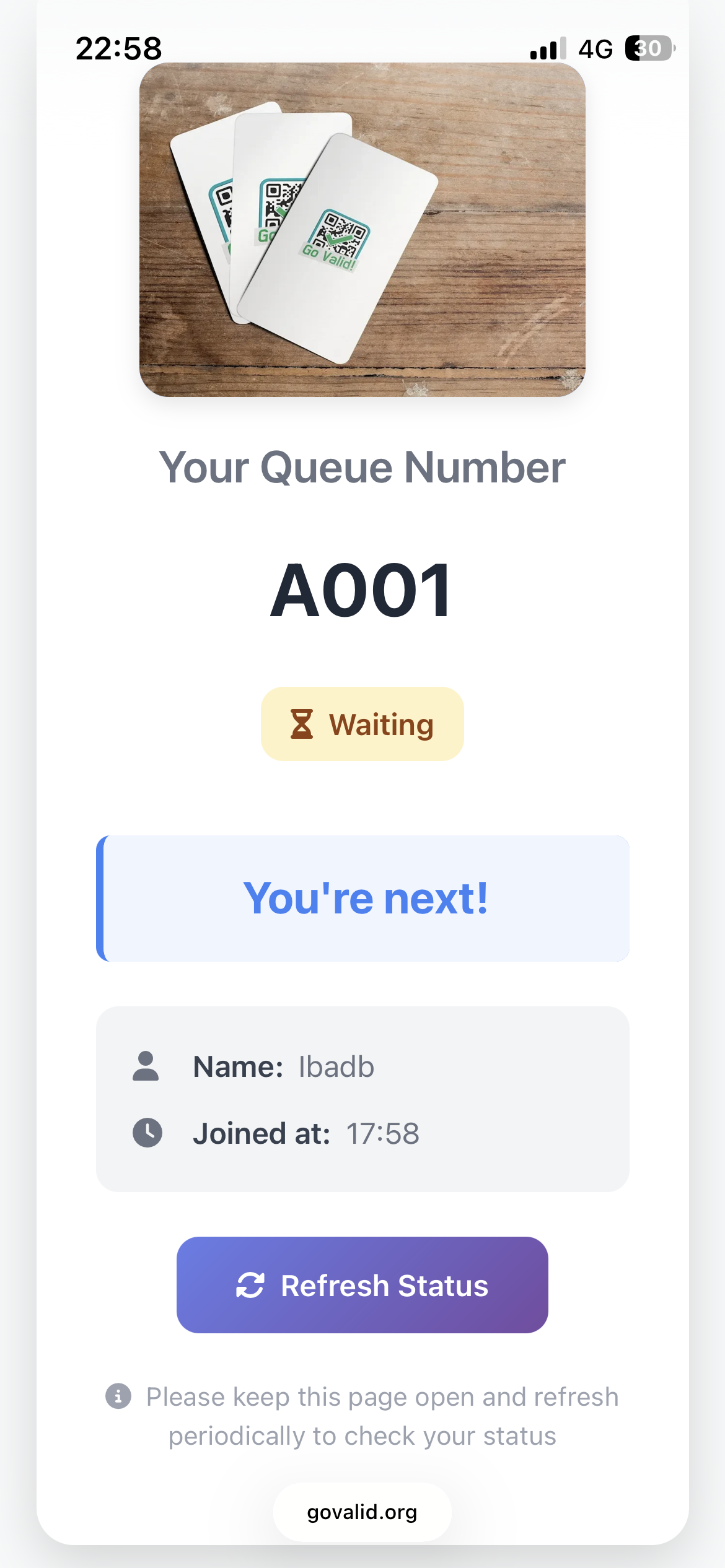
Queue Waiting Status

Waiting in Queue

Your Turn Status

Your Turn - Please Come!

Being Served Status
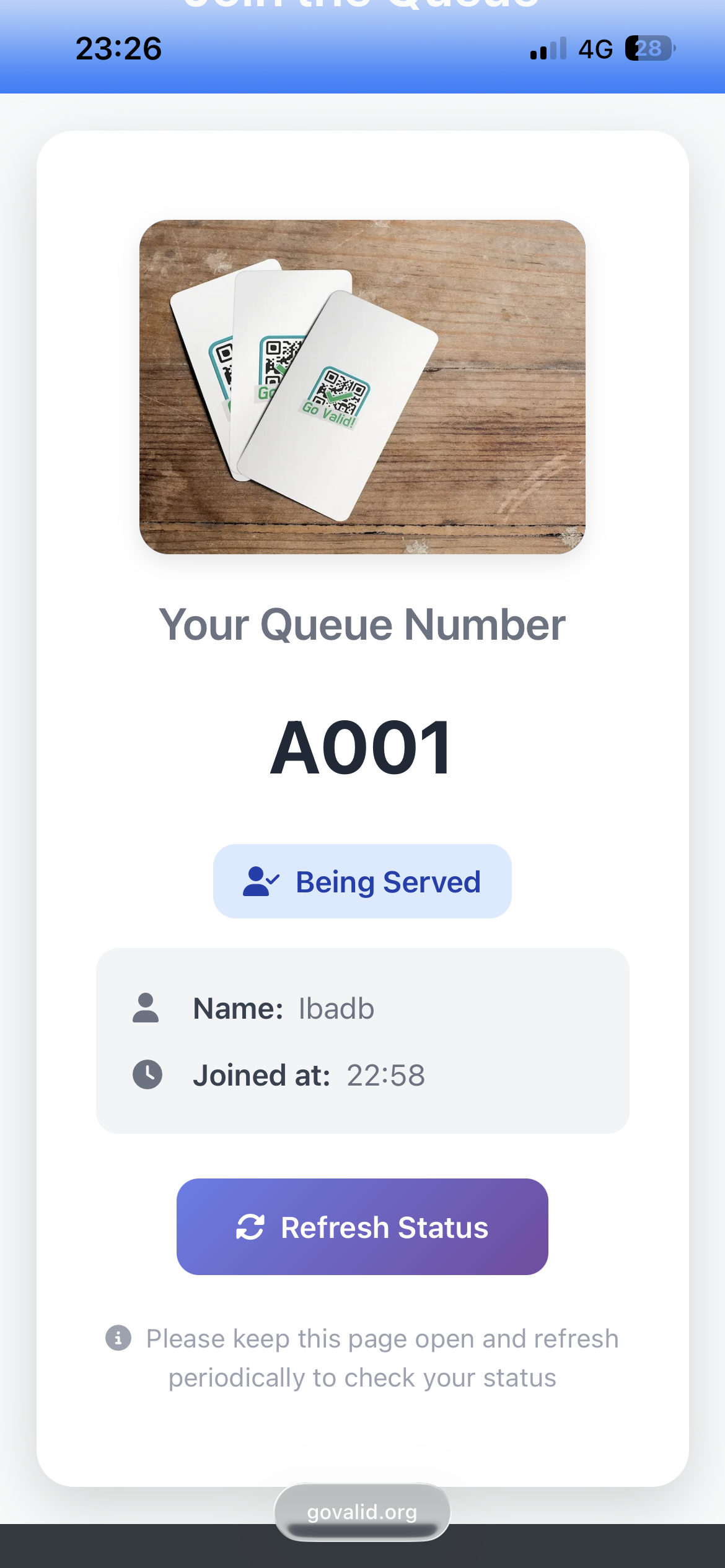
Being Served

Cara Kerjanya

Set up your queue system in minutes

1

Create Your Queue

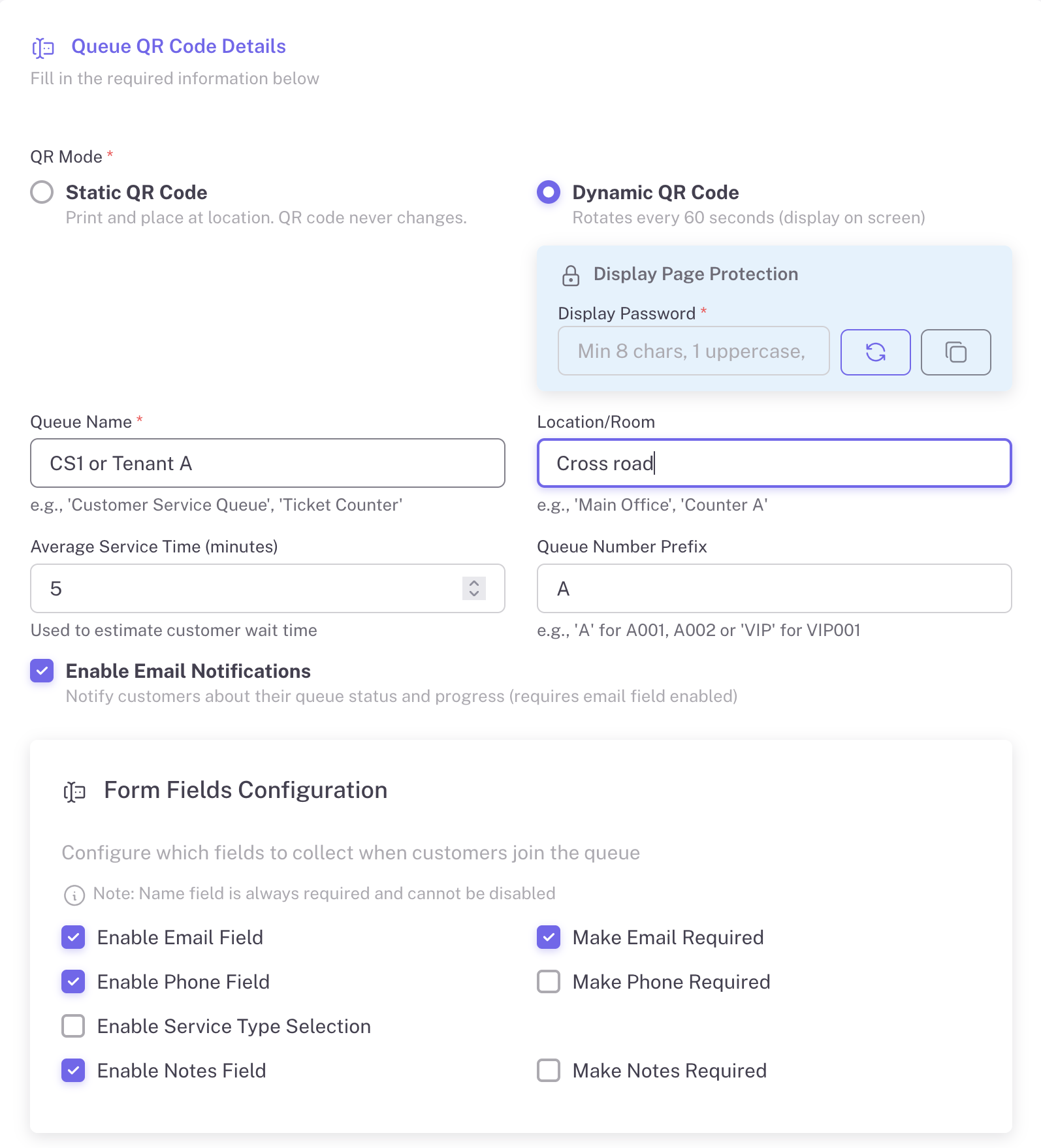
Configure your queue with custom settings: queue name, location, average service time, and form fields to collect customer information.

  • Set queue name and location
  • Configure average service time
  • Custom queue number prefix (A, B, VIP)
  • Enable email notifications
  • Collect name, email, phone, notes
Create Queue Form
2

Display the QR Code

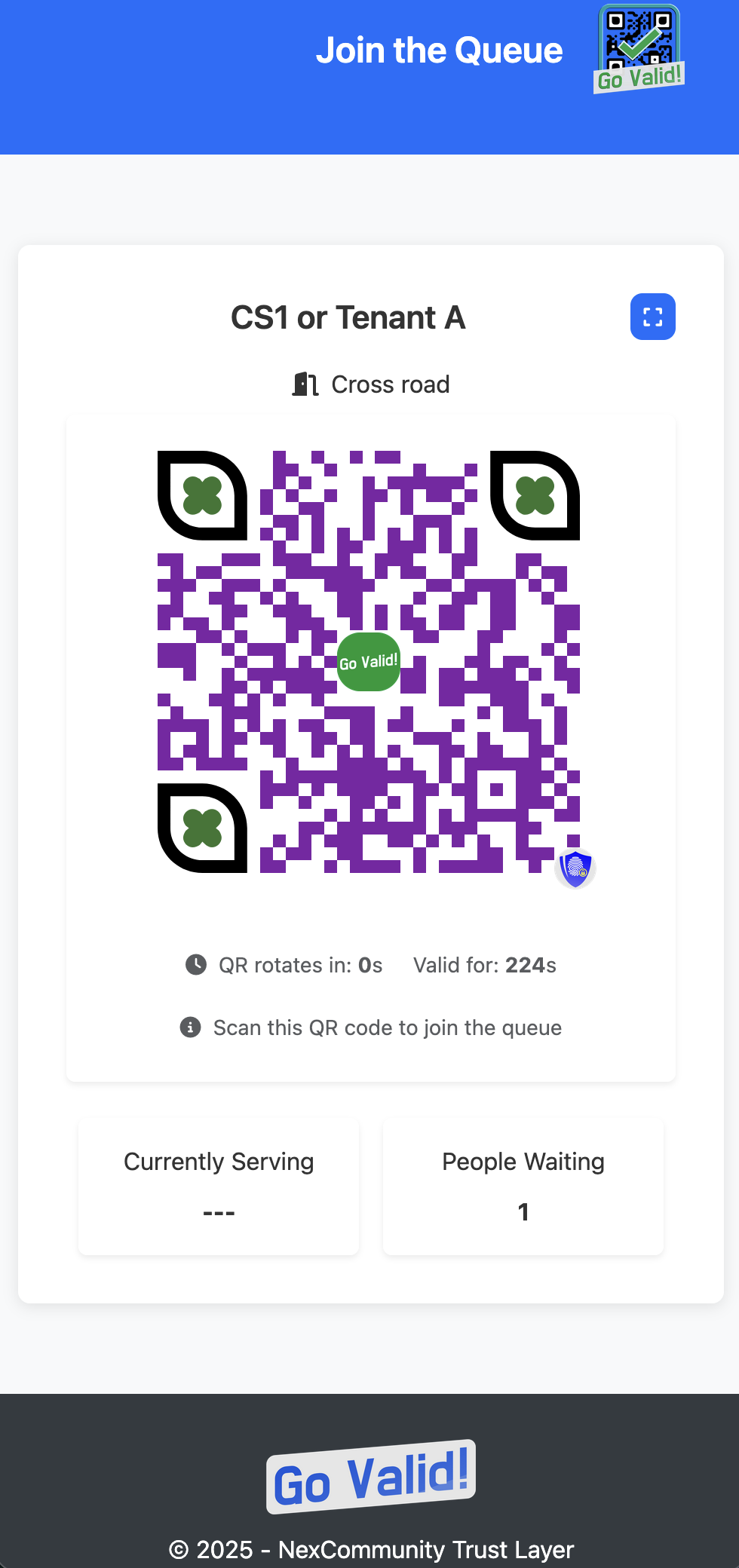
Show the QR code on a screen at your service counter. For Dynamic mode, the QR rotates every 60 seconds for security. Display is password-protected.

  • Password-protected display
  • Shows queue name and location
  • Currently serving number
  • People waiting count
  • Works on any screen
Kata Sandi Tampilan
Queue Display
3

Customers Join the Queue

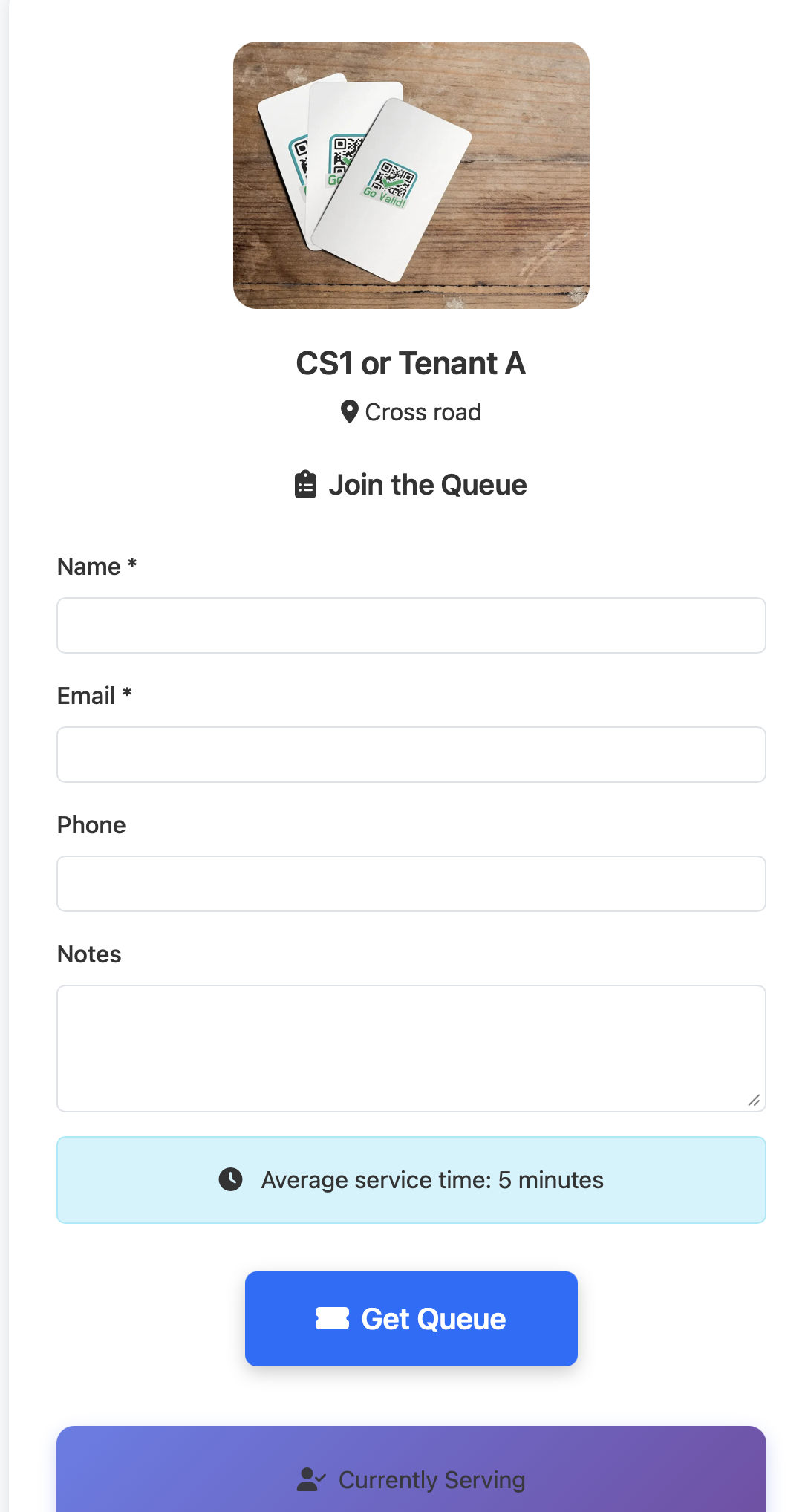
Customers scan the QR code, fill in their details, and get a queue number instantly. They can see estimated wait time and track their position.

  • Simple join form
  • Shows average service time
  • Instant queue number assignment
  • Real-time status tracking
  • Refresh status button
Join Queue Form
Queue Number
4

Staff Manages the Queue

Staff uses a separate password to access the control panel. One-click actions to call next customer, serve, and mark as complete.

  • Separate staff password
  • Call Next Customer button
  • Serve / Complete actions
  • View waiting, called, serving queues
  • Auto-refresh every 10 seconds
Staff Access
Staff Control
5

Track Analytics & Reports

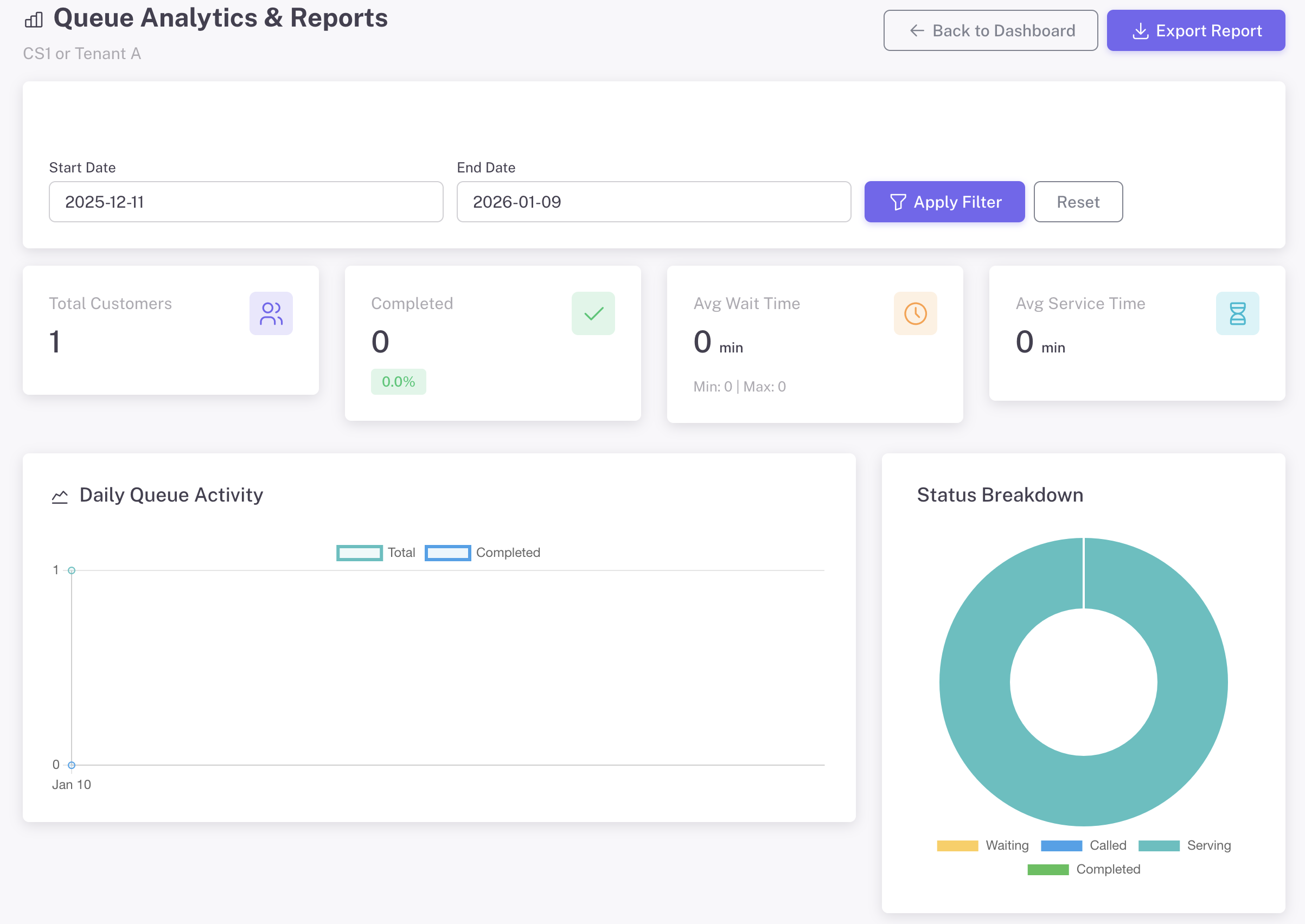
Access comprehensive analytics from the management dashboard. Track daily activity, peak hours, wait times, and export reports.

  • Total customers & completion rate
  • Average wait & service time
  • Daily queue activity chart
  • Peak hours analysis
  • Export reports to Excel
Dasbor Analitik

Full Customization

Make it yours - customize every detail to match your brand

Landing Page Branding

Create a professional queue experience that reflects your brand identity.

  • Upload your company logo
  • Add custom banner image
  • Set background color or gradient
  • Customize text and button colors
  • Add welcome message and instructions

QR Code Styling

Design unique QR codes that stand out and reinforce your brand.

  • Choose foreground and background colors
  • Select module shapes (squares, dots, rounded)
  • Customize eye patterns and styles
  • Add your logo in the center of QR code
  • Live preview as you design

All customization options are available in the QR creation form with real-time preview

Perfect For

Any business that serves customers

Banks

Customer service

Clinics

Patient registration

Pemerintah

Public services

Restaurants

Table waiting

Salons

Appointment queue

Pengecer

Service counter

Ready to Eliminate Long Queues?

Create your first Instant Queue in under 2 minutes. Free to start, no credit card required.

Explore More Guides

Discover other powerful Instant QR features